How to Use Suno AI: Full 2026 Tutorial From Sign-Up to Release
How to use Suno AI from first sign-up to a released track. Eight steps, no skipped detail, with the processing step most tutorials miss.
- Sign up and start on the free tier; upgrade only after testing
- Prompts matter more than tags for output quality
- Use the continuation feature for tracks longer than the default
- Process every track before submission to distributors
How to use Suno AI, end to end
This tutorial walks the full workflow from first sign-up to a track playing on Spotify. Eight steps. No technical background required. The whole process, including the wait time at each stage, takes 1 to 7 days from idea to streaming.
If you have already used Suno and want the release-specific steps, skip to step 6.
Step 1: Sign up
Go to suno.com. Click Sign In. Create an account with email, Apple, Google, or Discord. The Free tier is enabled immediately. If sign-in gives you trouble later, our Suno login and account guide covers password resets and account recovery.
The Free tier lets you generate music without payment but blocks commercial use. For testing the platform and seeing if it fits your workflow, the Free tier is the right starting point. You can upgrade later without losing the tracks you have already made (though Free-tier tracks remain non-commercial even after upgrade).
For the full breakdown of what each tier includes, see the Suno pricing page.
Step 2: Generate your first track
From the home screen, click Create. You will see two input modes:
Simple mode. Enter a description of the song. Suno picks the style and produces two variations.
Custom mode. Enter a more detailed prompt plus optional genre tags, style references, and vocal direction. More control, more prompt effort required. For control over a specific voice rather than a described one, see Suno voice cloning.
For your first try, start in Simple mode. Enter a basic description like "uptempo electronic with chill vibes, female vocal, 90 BPM" and hit Create. Within 30 to 90 seconds Suno produces two complete song variations.
The two variations are different interpretations of the same prompt. You can keep one or both, regenerate, or refine your prompt and try again.
Step 3: Write better prompts
The single biggest factor in Suno output quality is prompt quality. The model reads natural-language descriptions well. Specifics help:
Good prompt elements:
- Genre (electronic, lo-fi, R&B, indie folk, ambient, etc.)
- Tempo (slow, mid-tempo, uptempo, or specific BPM)
- Instrumentation (acoustic guitar, synth pad, drum machine, etc.)
- Mood (melancholic, energetic, contemplative, urgent)
- Vocal direction (male tenor with raspy delivery, ethereal female harmony, etc.)
- Reference styles (the sound of late-90s trip-hop, early-2000s indie rock, etc.)
Avoid:
- Specific artist or band names (Suno rejects most)
- Specific copyrighted song titles
- Unrealistic technical requests (specific frequency ranges, etc.)
A good prompt for vocal-led pop might read: "Mid-tempo indie pop, acoustic guitar driving rhythm, warm female vocal with vulnerability, late-afternoon-light mood, 96 BPM, written from second-person perspective."
A weaker version of the same prompt: "Make a sad song with guitar."
The difference in output quality is substantial. Spend 30 seconds on the prompt; save 30 minutes of regeneration.
Generation is easy. Distribution screening is the gotcha. Undetectr processes the track so DistroKid, TuneCore, and CD Baby accept it. $19 to start.
Try Undetectr → from $19 · $39 lifetimeStep 4: Continue the track for longer formats
Suno's default generations are usually around 2 minutes. For 3-5 minute tracks, use the Continue feature.
From the track page, click Continue. Suno generates additional content from where the existing track left off, attempting to maintain genre, mood, and arrangement.
For best continuation results:
- Add prompt notes specific to the continuation (different mood, energy change, instrumental break)
- Continue early in development rather than after multiple regenerations
- Stack multiple continuations for tracks over 4 minutes
Continuation quality varies. Genre and instrumental work continues most reliably. Vocal-led continuations can introduce style drift in the second half. Re-prompt if the continuation goes off-track.
Step 5: Pick your favorite and finalize
After generating, regenerating, and continuing, you will have several versions of the track. Pick the one you want to release.
Listening comparison. Use headphones. Play through both versions at the same volume. Note which has better dynamics, better vocal performance, cleaner instrumentation.
Finalize metadata. Title the track, optionally add description, set the cover image (Suno generates default art; you can replace it).
Export. Click the download icon. WAV for highest quality; this is what you want if you plan to process and distribute.
Step 6: Confirm commercial rights
If you generated on the Free tier, the track is non-commercial. You cannot sell it, monetize it on YouTube, or distribute it for royalties.
If you generated on Pro or Premier, you have commercial use rights. The license attached at generation time. You can release the track normally.
If you are unsure which tier was active when you generated, check your account settings for subscription history. The license depends on the tier at the moment of generation, not at the moment of release.
For the full breakdown of what each tier allows, see the Suno commercial use page.
Step 7: Process the track for distribution
This is the step most tutorials skip and where most musicians get stuck.
Distributors (DistroKid, TuneCore, CD Baby, Amuse, Ditto, RouteNote) run AI screening on every submission. Raw Suno exports trigger the screening and get rejected. Processing through a fingerprint removal tool eliminates the screening trigger.
Recommended workflow:
- Take your downloaded WAV from Suno
- Open Undetectr (or your chosen fingerprint removal tool)
- Upload the WAV
- Process (typically under 60 seconds)
- Download the processed WAV
The processed file is the one you submit to distribution. Our main testing page covers which processing tools actually work; the DistroKid AI detection guide covers why this step exists.
Skipping this step is the most common cause of "DistroKid rejected my AI track" Reddit posts.
Step 8: Submit to a distributor
Pick a distributor based on your release schedule and budget. For most independent musicians:
- High volume releases. DistroKid annual subscription ($23/year).
- Per-release pricing. CD Baby ($10 single, $30 album).
- Free tier with revenue share. Amuse or RouteNote.
For the comparison across all distributors, see the AI music distribution guide.
Submission process is similar across distributors:
- Create artist account
- Upload processed track
- Set metadata (title, artist name, genre, release date)
- Pick DSPs (Spotify, Apple Music, etc.)
- Submit and wait for distributor approval
Processed tracks pass distributor screening reliably. Approval typically takes minutes to a few hours.
After distributor approval, the track ships to streaming platforms. Spotify, Apple Music, and others generally list the track within 1 to 3 business days.
Optional: Stems and creative reuse
For musicians who want stem-level access (separated vocals, drums, instrumental), Suno does not export stems natively. You would run the stereo export through an AI stem splitter. See the Suno stems guide for the workflow.
This is optional and unrelated to distribution. Stems are for creative remixing.
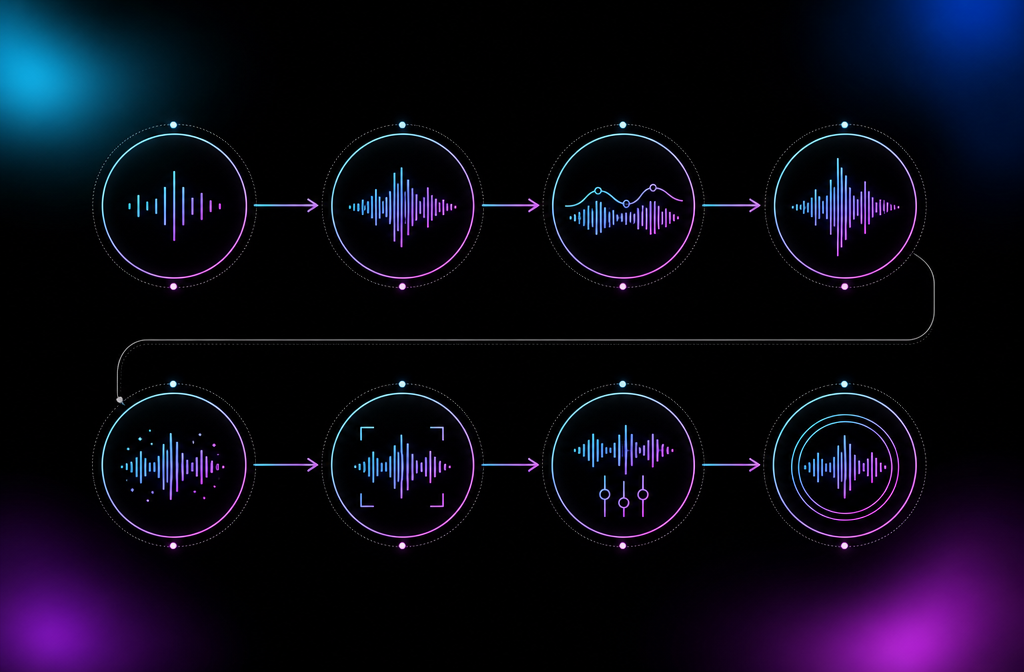
Common beginner mistakes
Generating on Free and trying to release. Free-tier tracks cannot be released commercially. Upgrade to Pro before generating tracks you plan to monetize.
Skipping processing and submitting raw. Raw Suno fails every distributor. Process before submission.
Over-prompting. Verbose prompts with conflicting instructions produce worse output than focused prompts. Specificity beats length.
Ignoring the Continue feature. Most users stay with the default ~2 minute generations and never try Continue. For commercial release, 2 to 4 minutes is typical; Continue gets you there.
Not listening on headphones before finalizing. Mobile speakers and laptop speakers hide problems. Headphones reveal them.
Picking the wrong distributor for your release schedule. Annual subscription distributors reward high volume; per-release distributors reward occasional releases. Pick by your actual schedule, not by what is most popular.
Bottom line on using Suno
Eight steps, three days end to end, from idea to streaming. The first six steps (signup through finalize) are intuitive and well-supported by Suno's interface. The two distribution-related steps (process and submit) are where most tutorials trail off and where most beginners get stuck.
For the processing step, the main testing page covers tool comparison and recommendations. For the broader release workflow, Suno commercial use and AI music distribution cover the legal and practical details. For pricing decisions, Suno pricing breaks down the tiers.
The full pipeline is workable for any independent musician. The only step that requires money beyond the Suno subscription is the processing layer (Undetectr Starter at $19 or Lifetime at $39 covers it).
Frequently asked questions
Sign up at suno.com. The free tier lets you generate immediately without payment. Click 'Create', enter a prompt or use the song description box, and Suno generates two versions of your track within 30 to 90 seconds.
Yes. The interface is designed for non-technical users. Prompt in, music out. The learning curve is in writing good prompts and choosing the right tier; the basic generation flow is approachable on day one.
Describe the song you want with specific genre, instrumentation, tempo, mood, and any vocal direction. Suno reads natural-language descriptions well. Avoid copying specific artist names (rejected) but you can describe genre traits.
Use the Continue feature. Select the generated track, click Continue, and Suno extends from where the original ended. The continuation tries to maintain genre and mood. Multiple continuations can be chained for long tracks.
Yes on Pro or Premier tiers. Free tier outputs are non-commercial only. The license attaches at generation time and persists after cancellation.
From the track page, the download icon offers WAV, MP3, FLAC, and M4A options. WAV is highest quality. MP3 is most universally compatible.
Distributors run AI screening on every upload. Raw Suno exports trigger the screening. Process the track through a fingerprint removal tool before submission to clear screening.
From generation to streaming platform listing takes around 1 to 7 days end to end. Generation: 30 to 90 seconds. Processing through Undetectr: under 60 seconds. Distributor review (after processing): minutes to 24 hours. Streaming platform live time: 1 to 3 business days after distributor approval.
Ready to release your Suno tracks?
Explore Undetectr’s published track-processing features before preparing your release.