Suno Login in 2026: Every Route In, and Every Account Fix After It
Suno has no password. Every sign-in goes through Google, Apple, Microsoft, Discord, Facebook or an SMS code, which is why the email-and-password login half the internet describes does not exist — and why so many people end up with two accounts and half a library.
- Suno does not use email and password at all. Its help centre says it does not use that format to sign up or sign in, so there is no Suno password to reset
- Five connected logins: Apple, Discord, Facebook, Google and Microsoft. The mobile app adds phone-number sign-in with an SMS code
- The most common real failure is not a wrong password, it is a second account. One email used across Google and Facebook creates two libraries, and only support@suno.com can merge them
- You can change your display name and avatar yourself. Changing the account's email address is documented nowhere — that one goes to support. Deleting the account is mobile-app only
- Cancelled already? The billing section disappears with the subscription. Suno points former subscribers at Stripe's portal, which emails a login link valid for 30 minutes
- Suno login in 30 seconds
- Why "Suno login with email" does not work
- Suno sign in with phone number
- The duplicate account trap, and how to get your songs back
- suno.com/account: billing, cancelling, and getting back in after you unsubscribe
- Change your Suno email, password or display name
- Suno inloggen: de korte versie
- Suno login failed: the errors, and what actually fixes them
- What logging in gets you since 3 September 2026
- The fake Suno login pages in the search results
- You are in. What happens to the track next
If you searched for a Suno login page, the thing you are looking for does not exist. Suno has no password field, no forgotten-password email and no email-and-password form anywhere in its sign-up flow — every route in goes through a provider you already have an account with, or a code texted to your phone. That one fact explains most of the login problems people report, including the one where you sign in successfully and your library has vanished.
We checked all of this against Suno's own help centre rather than against the guides ranking for the query, because those guides describe a flow Suno does not operate. Below: every route in, the duplicate-account trap, what suno.com/account is for and how to reach billing after you cancel, which account details Suno lets you change yourself, and what logging in gets you now that downloads are capped.
Suno login in 30 seconds
Go to suno.com, click Sign Up or Sign In at the top right, and choose the same provider you used the first time. That last clause is the whole trick, and the rest of this page is mostly consequences of getting it wrong.
| Route in | Where it works | What you need | Documented by Suno as |
|---|---|---|---|
| Web and mobile app | Your Google password | The example in its sign-up article | |
| Apple | Web and mobile app | Apple ID, Face ID or Touch ID | One of five connected logins |
| Microsoft | Web and mobile app | Microsoft account password | One of five connected logins |
| Discord | Web and mobile app | Discord password | One of five connected logins |
| Named in the help centre | Facebook password | One of five connected logins | |
| Phone number | Mobile app login article | Region code, number, SMS code | Enter code, validated automatically |
| Email and password | Nowhere | — | Explicitly not used |
The five connected logins come from Suno's article I can't log in with my email address!, which lists Apple, Discord, Facebook, Google and Microsoft. The phone route comes from its mobile How do I log in? article, which describes four provider icons plus the phone option. The table keeps those lists separate, because Suno does not present one combined list.

Why "Suno login with email" does not work
This is the second-biggest thing people type after the bare brand query, and it has a one-sentence answer from the vendor. Suno's help centre states: "Suno accounts are most often connected to an email address, but we do not use the email/password format to sign up or sign in."
The distinction is doing real work. Your email address identifies your account — it is what appears in your profile and what support will ask for. It is not a credential. Nothing you type into a password box will ever open a Suno account, because Suno never stored a password for you to type.
So the questions that follow answer themselves:
- "Where is the forgot-password link?" There is none, and a site that shows you one is not Suno.
- "Can I set a Suno password?" No. Your security lives at Google, Apple, Microsoft, Discord or Facebook, which is also where two-factor authentication belongs.
- "Which email did I use?" The useful question is which provider you used. The email may be identical across all of them.
That last point is where people lose their work, so it gets its own section below.

Suno sign in with phone number
Phone sign-in is the route almost nobody writes about, and it behaves differently from the rest. In the mobile app you enter your region code and number, tap Confirm, and Suno sends a one-time passcode by SMS; the app validates the code automatically once you enter it. It is the only route that does not depend on a third-party account.
It is also the most fragile, and Suno documents two specific failures in I can't log in with my phone number!: the OTP never arrives, or you get an error about being from a restricted region. Neither has a self-service fix, and Suno's stated resolution is that support "may request that you start a new account using one of the SSO login methods such as Login via Google."
A new account is not your old account. So if your library sits behind a phone number that has stopped working — new carrier, new country, an OTP that simply will not come — the documented path forward begins by leaving that library behind, and getting it back means a conversation at support@suno.com rather than a form. Use phone sign-in if you want it, but do not make it the only route into a catalogue you care about.
The duplicate account trap, and how to get your songs back
Here is the failure that generates the most panic, and it looks nothing like a login error. You sign in, everything works, and your library is empty.
Suno's own framing: if you do not see your previous songs in your library, there is a good chance you have more than one account. And the mechanism is exactly the one the platform's design invites — the help centre spells it out with an example, that if you use the same email to sign into Facebook and Google, you should use the method you selected during sign-up.
| What you did | What Suno saw | What you get |
|---|---|---|
| Signed up with Google, later signed in with Google | One identity | Your library |
| Signed up with Facebook, later signed in with Google, same email | Two identities | A second, empty account |
| Signed up on the app with a phone number, later signed in with Apple on the web | Two identities | A second, empty account |
| Signed up with Apple using Hide My Email, later signed in with Google | Two identities | A second, empty account |
The Apple row deserves a note. Sign in with Apple can hand a service a relay address rather than your real one, so the email on that Suno account may be a forwarding address you have never seen — which makes "I'll just use the same email" impossible to verify by eye.
The recovery path is a human one. Suno asks you to email support@suno.com, and states that support can recover account details and merge accounts if your songs are spread across two or more. Send the provider you think you used, the email addresses involved, and a couple of song titles from the missing library. There is no self-service merge button, so write sooner rather than later — particularly if a subscription is attached to one identity and your songs to another.

suno.com/account: billing, cancelling, and getting back in after you unsubscribe
A surprising share of this query cluster is people typing the account URL directly into a search box, and they are rarely there to log in. They are there to cancel something, or to find a receipt for a subscription they already cancelled.
suno.com/account is the billing page. Suno's help centre points you to it to cancel your subscription — choose Cancel Subscription at the top of the page and confirm — and to update card details, where choosing Update Payment redirects you to Stripe, Suno's payment processor.
| What you want | Where it happens | The catch |
|---|---|---|
| Cancel a subscription | suno.com/account → Cancel Subscription | Confirmation step before it applies |
| Change your card | suno.com/account → Update Payment | Handled on Stripe, not on Suno |
| See billing details at all | suno.com/account | The area is only visible while actively subscribed |
| Billing details after you cancel | Stripe's own portal, by email link | Not on suno.com at all — see below |
| Cancel an App Store or Play Store plan | Apple or Google, not Suno | Suno generally cannot modify these |
The fourth row is the one almost nobody finds, because the page it concerns is not a Suno page. Suno's article I'm no longer subscribed. How do I access my billing information? says that once the subscription has ended you reach your invoices by entering your account email in Stripe's billing portal, which emails you a login link — and that the link is only active for 30 minutes. If you have ever logged in, found no billing section and concluded the account was broken, that is the explanation: the section is gone because the subscription is, and the receipts moved to Stripe.
The last row is the one that turns into an angry support ticket. If you subscribed inside the iOS or Android app, the money is Apple's or Google's problem; cancel it where you bought it. What survives a cancellation is in what you keep if you cancel, and the tier maths in the Suno pricing breakdown.
Change your Suno email, password or display name
The answers here are not symmetrical — Suno documents some of these in one click and others not at all, which is worth knowing before you go hunting for a settings screen that does not exist.
| What you want to change | Can you do it yourself? | Where |
|---|---|---|
| Display name | Yes | Web: profile icon → Edit Profile. App: profile icon → gear → Account → Name field, then save |
| Profile avatar | Yes | Same Edit Profile screen |
| Password | There isn't one | Change it at Google, Apple, Microsoft, Discord or Facebook instead |
| Account email address | Not documented anywhere | No article in Suno's Accounts & Billing category covers it; the documented route for account details is support@suno.com |
| Card and billing address | Yes, while subscribed | suno.com/account → Update Payment → Stripe |
| Delete the account | Yes, but only in the mobile app | App: profile icon → gear → scroll to Delete account |
Two rows deserve a sentence more.
The email address is the hard one. Suno's Accounts & Billing category documents changing your display name and your avatar, and nothing about changing the email on an account. The email is the label on a provider-linked identity rather than a credential, so this is an account-details change, and the only route Suno publishes for those is support@suno.com. Do not try to solve it by signing in with a different provider on the new address — that is how the duplicate-account trap above is sprung.
Deleting is permanent and app-only. Suno's How do I delete my account? article puts the control in the mobile app — profile photo, gear icon, scroll to the bottom — behind a human-verification step, and states that deletion is permanent and that songs and personal details will not be recoverable. There is no equivalent button on the web, so a web-only user who wants out has to install the app or write to support.

Suno inloggen: de korte versie
Deze pagina krijgt genoeg Nederlandse bezoekers dat het onbeleefd zou zijn ze alleen Engels voor te schotelen. De kern in vier zinnen.
Suno heeft geen wachtwoord. Je logt in via Google, Apple, Microsoft, Discord of Facebook, of in de app met je telefoonnummer en een sms-code. Er bestaat dus ook geen "wachtwoord vergeten"-link, en een site die er wel een toont is niet van Suno. Gebruik altijd dezelfde aanbieder als bij je aanmelding, anders maak je per ongeluk een tweede account aan en lijkt je muziekbibliotheek leeg — dat los je alleen op via support@suno.com.
Suno login failed: the errors, and what actually fixes them
Most published troubleshooting for this platform is generic browser advice. Clearing your cache is a fine thing to try and it fixes almost none of these, because almost none of them are browser problems.
| What you see | What it usually is | What fixes it |
|---|---|---|
| "Wrong password" on a Suno page | You are not on Suno | Close the tab; go to suno.com |
| Signed in, library empty | A second account | Email support@suno.com to merge |
| No OTP by SMS | Carrier, number or region | Support; documented fallback is a new SSO account |
| "Restricted region" on phone sign-in | Region block on the phone route | Use a connected login instead |
| Provider loop that never completes | Blocked third-party cookies or an extension | Retry in a normal window with the blocker off |
| Signed in but no billing section | You are not currently subscribed | Expected — request a Stripe login link by email instead |
| Subscription missing from the account page | Bought via App Store or Play Store | Manage it at Apple or Google |
| Looking for a password-reset email | There is no Suno password | Reset it at your provider; nothing will arrive from Suno |
One habit prevents most of the list: write down which provider you signed up with, next to the email it uses. Everything downstream — a lost library, a missing subscription, a support ticket that takes a week — starts with that fact being unknown.

What logging in gets you since 3 September 2026
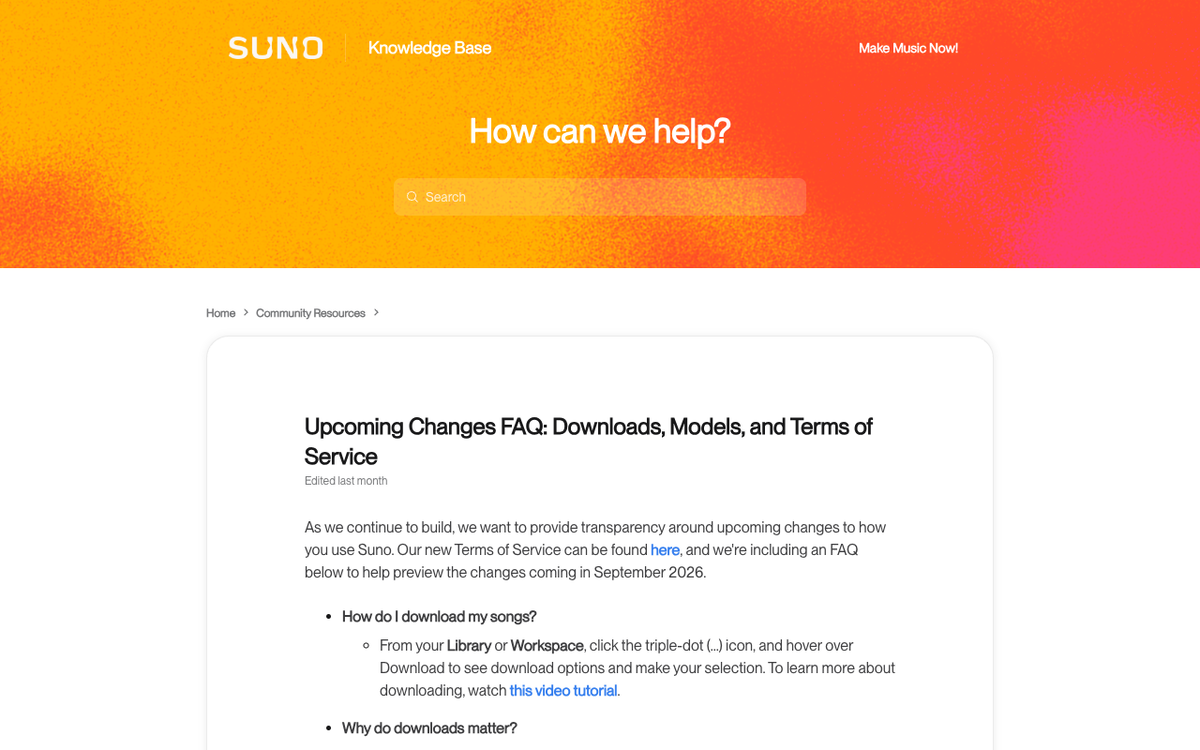
Older guides to this topic, ours included, ended with a reassuring line about downloading your catalogue before you cancel. That advice expired on 3 September 2026. Suno's upcoming changes FAQ sets per-plan download limits and applies them to everything, "including songs created before that date."
| Plan | Downloads | Terms |
|---|---|---|
| Free | 7 total, for the lifetime of the account | Trial downloads, personal and non-commercial only |
| Pro | 20 per month | Commercial use rights |
| Premier | 60 per month | Commercial use rights |
| Suno Studio | No limit from Studio | Aimed at professional users |
Extra downloads can be bought once you hit the cap. Two consequences follow. "Log in and export everything before I cancel" is now a multi-month project on Pro, or a purchase; and a free account holds seven downloads ever, so anyone logging in to rescue a free-tier library should choose those seven carefully. The export planning is in Suno download limits, and the licence in commercial use.

The fake Suno login pages in the search results
Search this query and the results are not what a navigational SERP should look like. We checked every non-video result on 14 September 2026 from a clean container.
Two of the top results were gone — aitoolapp.com/suno/login/ returned 404 and an Oreate AI post titled "Unlocking Access: How to Log in to Suno AI for Free" returned 410. One, sunnoai.com/login/, is a stub of roughly twenty words behind a placeholder animation. And one, suno-ai.org/login/, presents a working-looking login form with username and password fields, a "Powered by Suno AI" footer, and links to suno.com only for its About, Privacy and Terms pages.
We do not know what that page does with a submitted password, and this test makes the question unnecessary: Suno has no password, so any page asking for one is not Suno. The credentials you type belong to Google, Apple, Microsoft, Discord or Facebook — on their own domains, reached by clicking their button. If you have already typed a password into one of these pages, change it at that provider and check its recent-activity log; our is Suno safe piece covers the platform-level questions.
You are in. What happens to the track next
Logging in is the easy gate. The ones after it are where releases stall, and they are worth knowing before you spend a download on a file you cannot use.
The first is automated screening. Distributors run AI detection on uploads, and while six of them — DistroKid, RouteNote, UnitedMasters, LANDR, Amuse and Symphonic — accept AI music openly, individual uploads still get flagged and bounced. Processing the exported file before you submit is what Undetectr is for: distributor screening and artifacts, nothing more. No tool stops a platform labelling a release as AI.
The second gate is the one nobody warns you about: finding listeners. The two routes that do not depend on algorithmic discovery are selling direct and pitching for paid placement — which is what played.fm is built around.
Downloads are capped now, so the file you spend one on should be release-ready. Undetectr processes an exported track for distributor screening and audible artifacts before you submit it.
Try Undetectr → from €19 · €39 lifetime, founder pricingSuno login is a provider question, not a password question. Pick the button you picked the first time and the rest of the problems here never happen to you. If they already have: an empty library is a duplicate account and goes to support@suno.com, billing lives at suno.com/account unless you bought through an app store, and a page asking for a Suno password is not Suno. Our how to use Suno guide picks up where this page stops.
Frequently asked questions
Go to suno.com and choose Sign Up or Sign In at the top right, then pick the connected login you used when you created the account: Apple, Discord, Facebook, Google or Microsoft. In the mobile app you can also sign in with your phone number and an SMS code. There is no email and password step at any point.
Because Suno never issued you a password. Its help centre states that Suno accounts are most often connected to an email address, but that it does not use the email/password format to sign up or sign in. Your email is the label on the account, not the key to it — the key is whichever provider you first signed up with.
You cannot, and you do not need to. There is no Suno password, so a forgotten-password flow would have nothing to reset. If you cannot get in, the password to recover is the one belonging to your Google, Apple, Microsoft, Discord or Facebook account, and you reset that with the provider.
Yes. Google is one of the five connected logins Suno names, and it is the example its own sign-up article uses. The catch is consistency: if you first signed up with Facebook and later sign in with Google using the same email address, you land in a different, empty account rather than in your library.
Phone sign-in is documented in Suno's mobile app login article. Enter your region code and number, tap Confirm, and Suno texts a one-time passcode that the app validates automatically. Two known failure modes are the code never arriving and an error about a restricted region, both of which go to support@suno.com.
Almost always a second account. Suno's own guidance is that if you do not see your previous songs in your library there is a good chance you have more than one account, and it asks you to email support@suno.com, who can recover the account and merge libraries if your songs are spread across two or more of them.
It is the billing page. Suno's help centre points you there to cancel a subscription and to choose Update Payment, which hands you to Stripe for card details. The billing area only appears while you are actively subscribed, and Suno cannot modify subscriptions you bought through the Google Play Store or the App Store.
There is no documented self-service route. Suno's Accounts & Billing category covers changing your display name and avatar and says nothing about the account email, so the published path for account details is emailing support@suno.com. Do not sign in with a different provider on the new address instead — that creates a second, empty account.
That is expected: the billing area only shows while a subscription is active. Suno's help centre directs former subscribers to Stripe's billing portal instead — enter the account email and Stripe emails a login link, active for 30 minutes only.
In the mobile app only: profile photo, gear icon for Settings, scroll to the bottom, Delete account, then a human-verification step. Suno states that deletion is permanent and that songs and personal details will not be recoverable.
Not since 3 September 2026. Suno now caps downloads at 7 for the lifetime of a free account, 20 a month on Pro and 60 a month on Premier, and the cap applies to everything in your library including songs created before that date. Suno Studio is exempt and extra downloads can be purchased.
Ready to release your Suno tracks?
Explore Undetectr’s published track-processing features before preparing your release.