AI Background Music for Voiceovers: A 2026 Workflow
An AI background music generator can give you an impressive track that makes a voiceover harder to understand. A busy melody, a dramatic vocal entrance or an oversized drop can distract from the exact sentence the video needs people to hear. This workflow uses current Suno documentation and a practical cue sheet to help you build a bed around speech, with WaveQuake as an option for developing an original soundtrack.
- The short version: An AI background music generator should serve the spoken message: start with the voiceover, then choose the music.
- Plan three listening zones: the opening, the main explanation and the closing call to action.
- Suno Sounds offers loops with BPM and key settings; a full song needs a separate editorial selection and trimming stage.
- WaveQuake fits projects that need an original musical direction and several arrangement candidates before the final edit.
- Start with the spoken recording
- Give the generator an arrangement brief
- Choose a loop or a full composition deliberately
- Build a cue sheet for the video
- Compare music under the voice, at a useful level
- Use WaveQuake for an original soundtrack direction
- Make clean edits and keep the handoff usable
- Save a reusable brief for the next episode
Start with the spoken recording
Put the voiceover on the timeline first. Mark the opening sentence, the densest explanation and the closing instruction. Those moments tell you more about the music brief than the video's broad category does.
For a product tutorial, the audience needs to follow the steps. For a personal story, music may help carry an emotional turn. For a short announcement, a recognizable opening motif may matter more than a developing arrangement. Decide which job you are asking the music to do before generating it.
Listen to the voice without music and fix obvious recording problems first. Background music should not be used to hide clipping, a distracting room echo or inconsistent speech levels. Those problems become harder to diagnose once a second signal competes for attention.
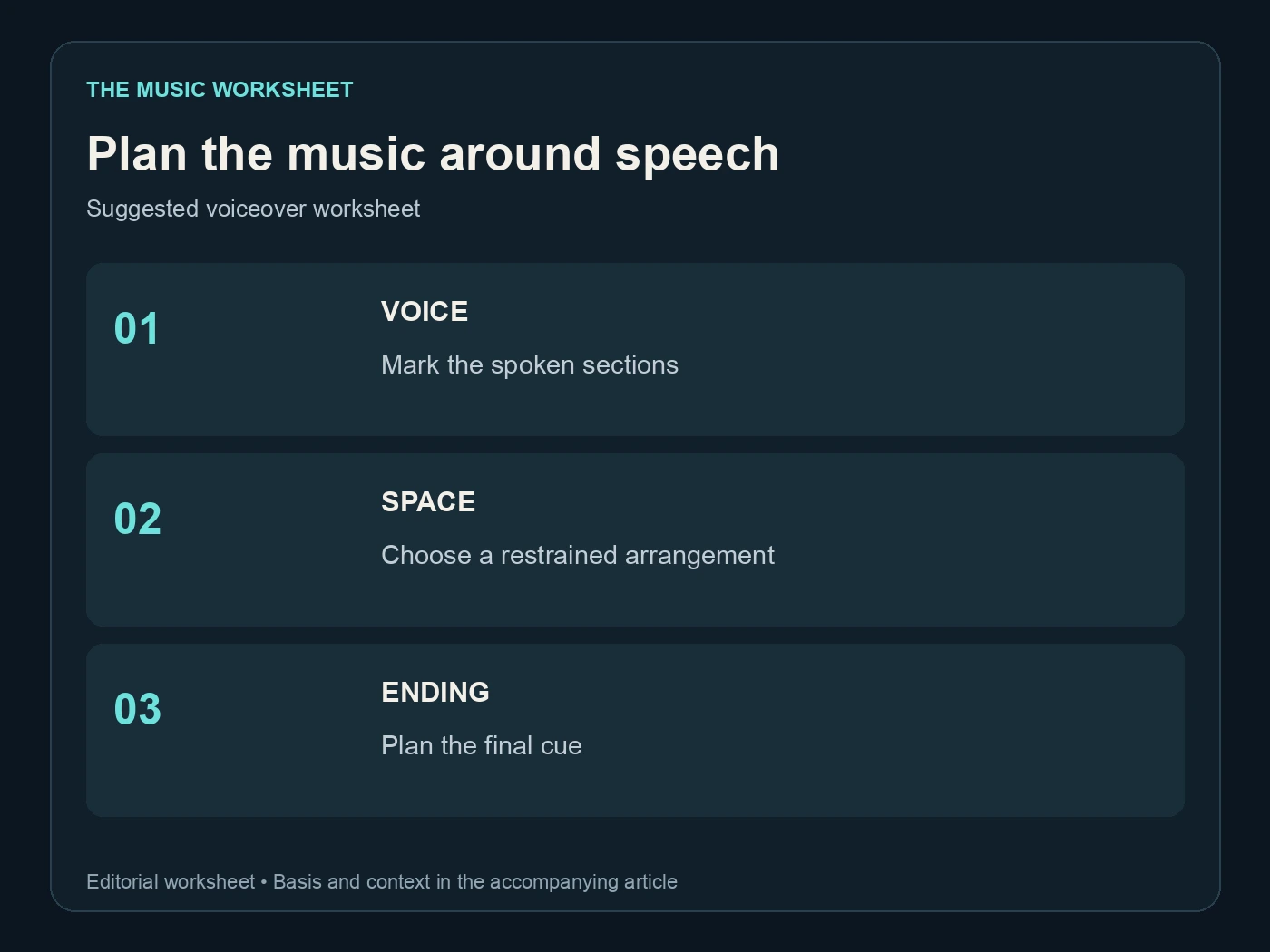
Write a one-sentence music brief: “A restrained, warm background bed with a steady pulse, little melodic movement and room for continuous narration.” Add the intended duration and where you want the strongest musical moment. Our AI music for YouTube guide covers the publishing context; this article focuses on the audio edit.
Give the generator an arrangement brief
Prompt for density, instrumentation and movement. “Minimal percussion, soft keys, sustained low background texture, no dramatic breaks” is easier to evaluate than “professional corporate music.” Describe what the listener should notice and what should stay behind the voice.
Avoid requesting a busy lead melody and uninterrupted narration at the same time. A memorable tune can work beautifully in an opening or ending, but may compete with the main explanation. You can select different passages for different parts of the video instead of forcing one musical intensity across the whole piece.
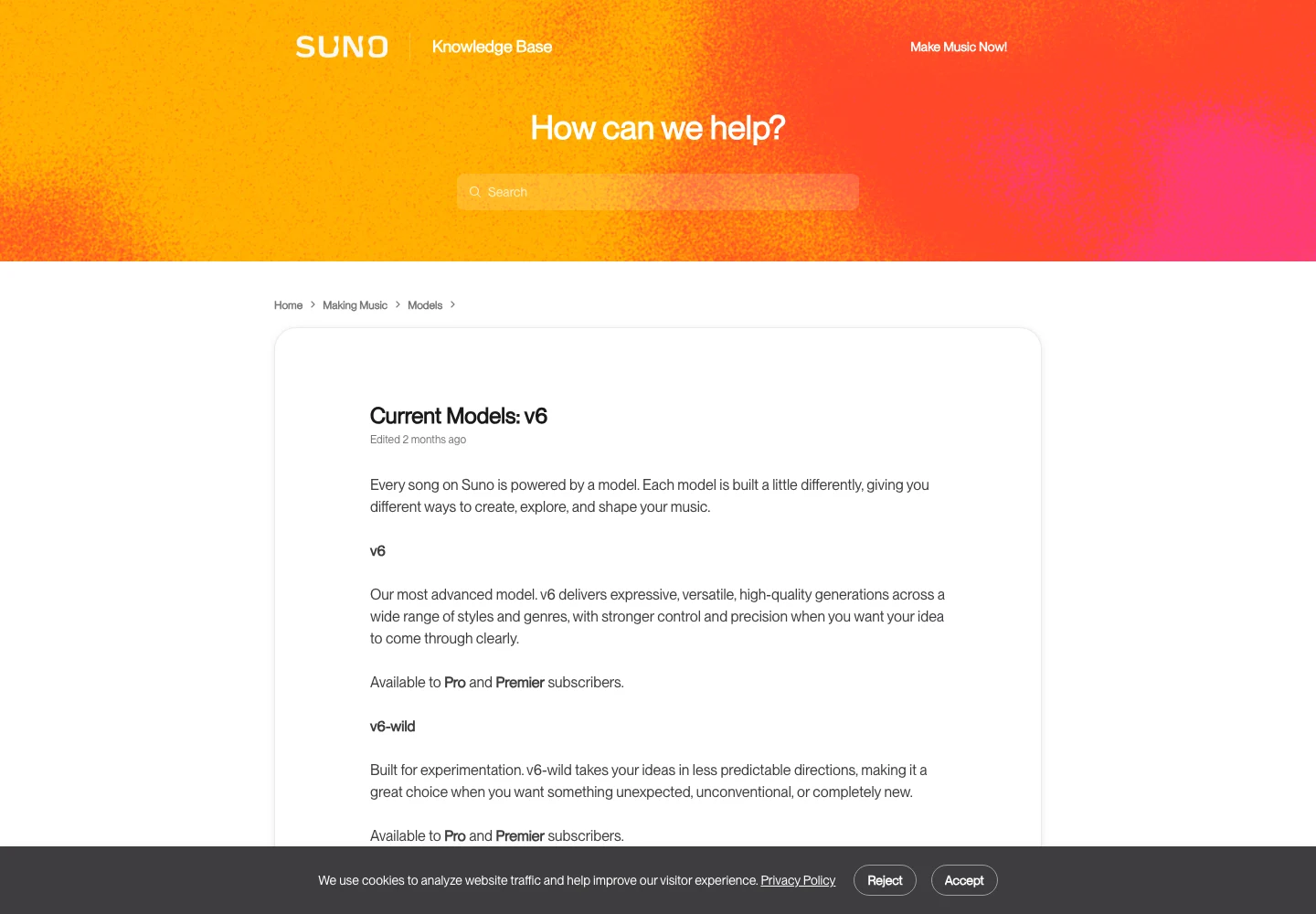
Suno's V6 model guide describes the core model as the controlled starting point and Wild as the more experimental variant. Those are useful creative roles, not guarantees about intelligibility. The final decision must come from hearing the generated take with the actual voiceover.
Our Suno prompt guide offers broader examples. For this task, change one arrangement variable at a time. If the first take is too dense, reduce the instrumentation before rewriting the genre, tempo and mood together.
Choose a loop or a full composition deliberately
A loop can be a better fit for a long explanation with little emotional change. A full composition can be a better fit for a story with a clear beginning, turn and resolution. Neither is automatically more professional; the structure has to fit the picture and speech.
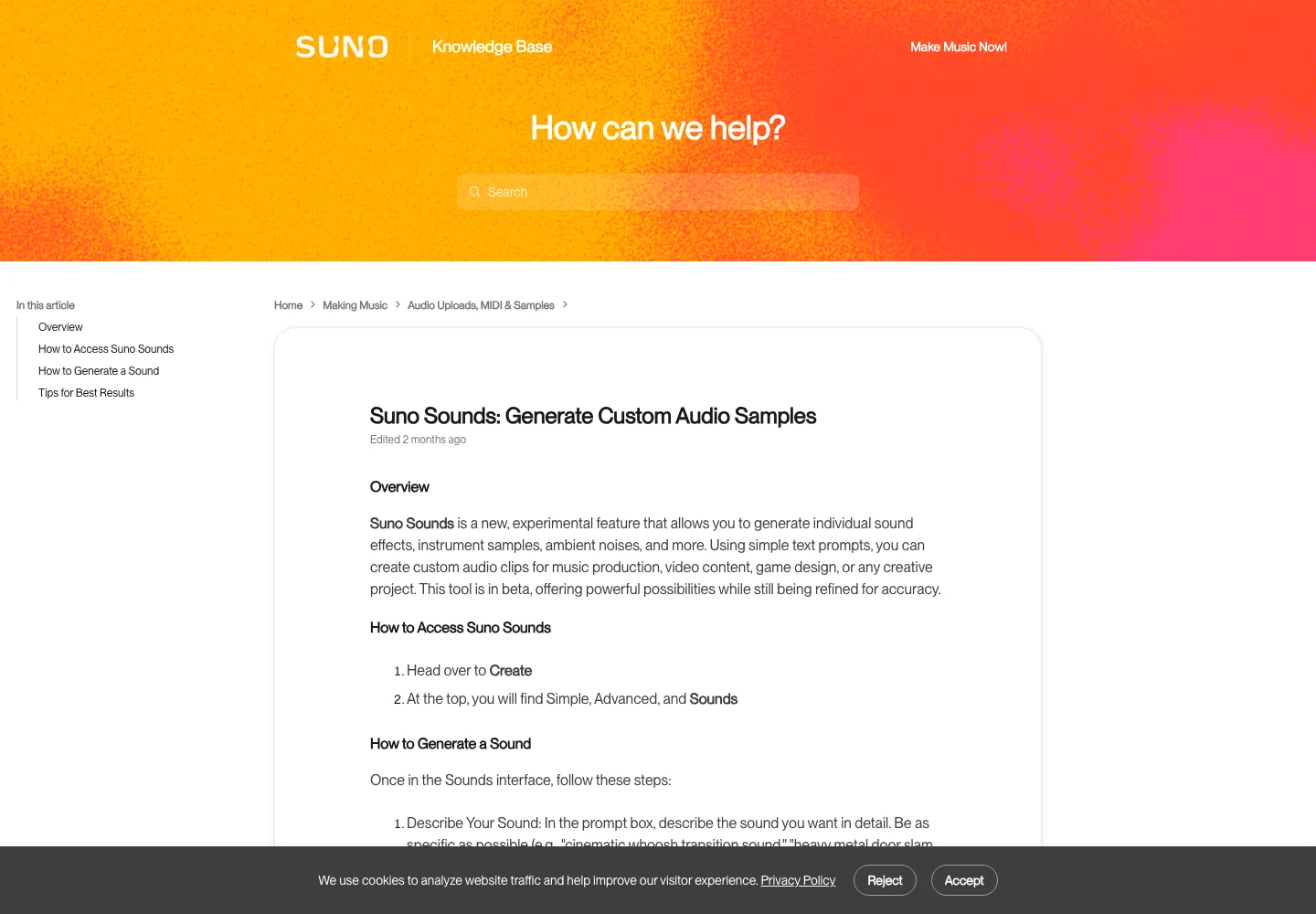
Suno Sounds offers One Shot and Loop types and lets you specify BPM and key. Its documentation also warns that a requested loop may contain a fuller arrangement. Check the output instead of treating the label as a delivery guarantee.
For a full song, identify a passage without distracting vocal content or a dominant lead. If you need an instrumental version, verify that the chosen product and workflow actually provide one. Do not assume a generation request or a stem separator will remove every trace of a vocal.
Keep the untouched source and make your edits in a separate project. That gives you room to change the narration length later without regenerating the entire soundtrack. Our stem guide is useful when you need to work with individual layers.
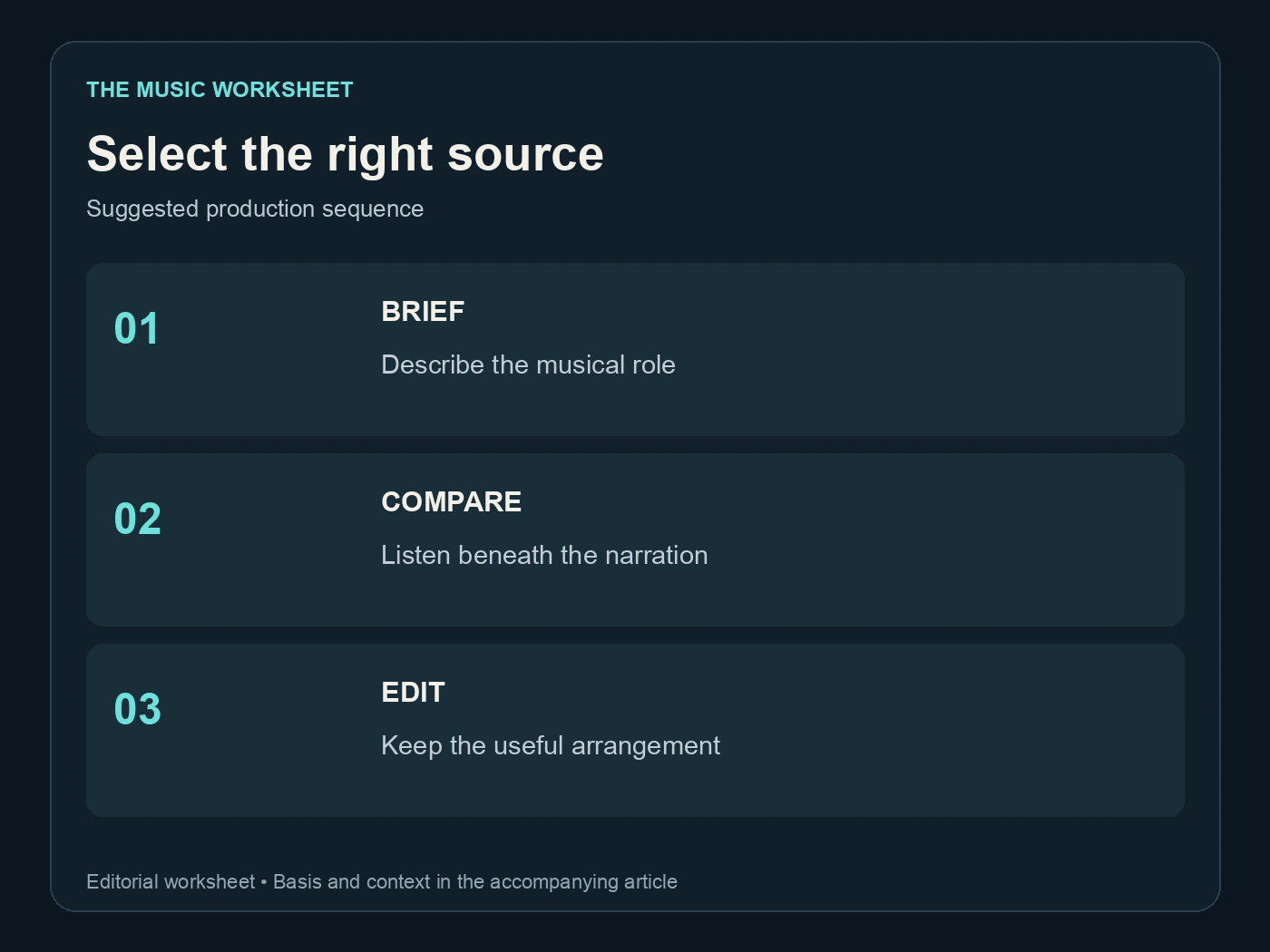
Build a cue sheet for the video
A cue sheet makes the brief concrete. It records where music should enter, where it should become quieter and where a stronger moment can sit. The following is an illustrative 60-second tutorial plan, not a platform requirement.
| Timeline | Duration | Spoken job | Music direction |
|---|---|---|---|
| 0–5 seconds | 5 s | Introduce the problem | Brief motif, restrained entrance |
| 5–20 seconds | 15 s | Explain the first step | Thin texture, steady pulse |
| 20–45 seconds | 25 s | Demonstrate the process | Stable bed, few new events |
| 45–55 seconds | 10 s | State the result | Gentle lift after key words |
| 55–60 seconds | 5 s | Give the next action | Clear ending, room for final sentence |
Notice that the busiest explanation gets the simplest music. This is an editorial choice, and you should change it if your video has a different structure. The point is to make the choice before you become attached to a particular track.
Mark transitions on the voice track as well as the music. A swell that sounds satisfying during a pause may obscure the first word after it. Review the few seconds around every transition, not just the time marker itself.
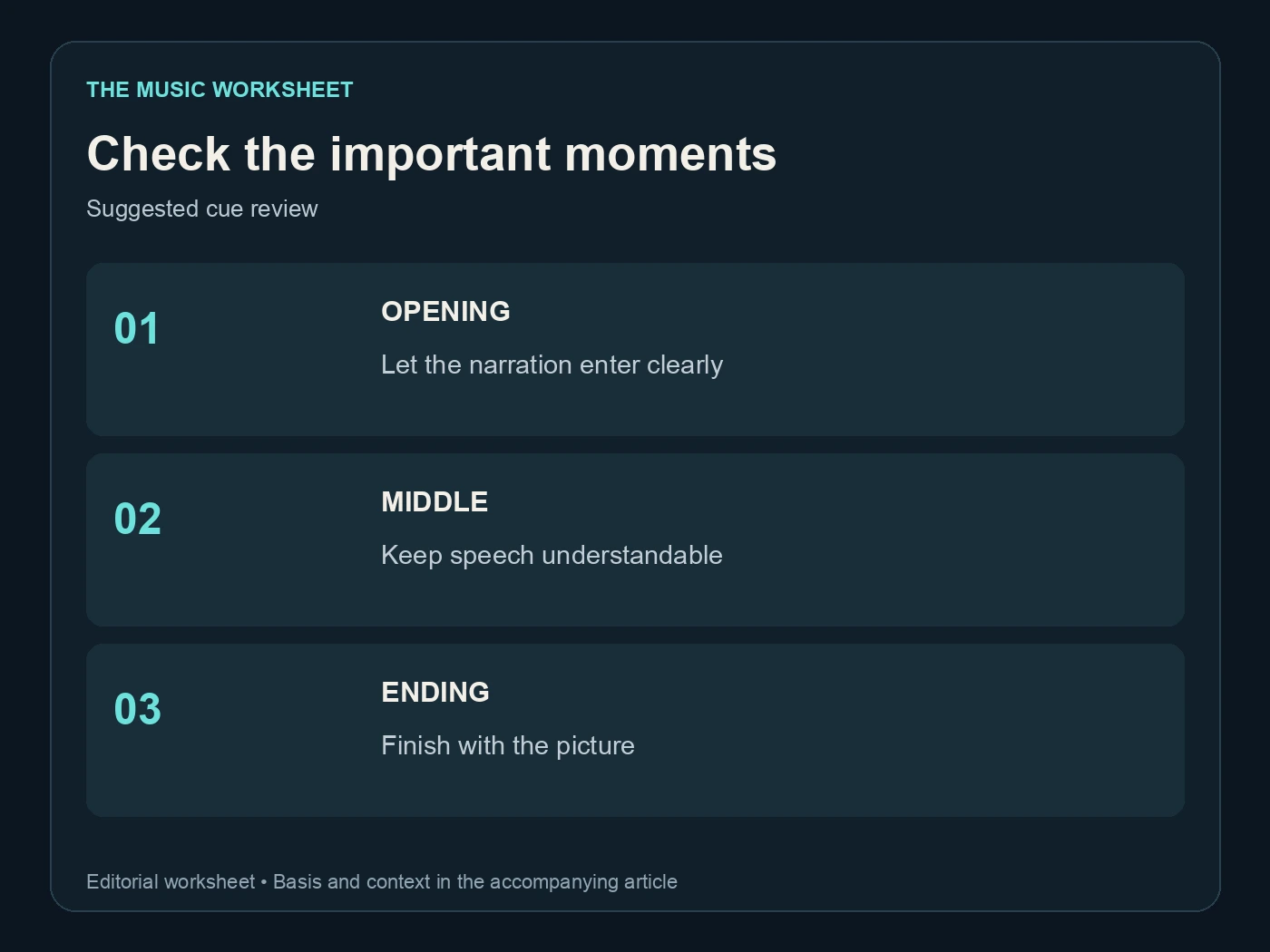
Compare music under the voice, at a useful level
Do the selection with the narration playing. A track that wins in headphones by itself may lose once it competes with speech. Start quietly, bring it up until it contributes, and listen for the first point where words become harder to follow.
There is no single fader position that works for every recording. The balance depends on the voice, arrangement, playback device and listening environment. Use your ears and, if available, a second listener who has not memorized the script.
| Review pass | Suggested duration | Listen for |
|---|---|---|
| Opening check | First 10 seconds | Immediate word clarity |
| Dense section check | 20 seconds | Masked consonants and competing melody |
| Transition check | 5 seconds on each side | Sudden jumps or distracting fills |
| Full delivery check | Entire 60-second example | Consistent speech priority |
These timings describe the example project, not a measured threshold for intelligibility. Repeat the full check on a phone speaker at an ordinary listening level. If you can only understand the narration with headphones, revisit the arrangement and balance.
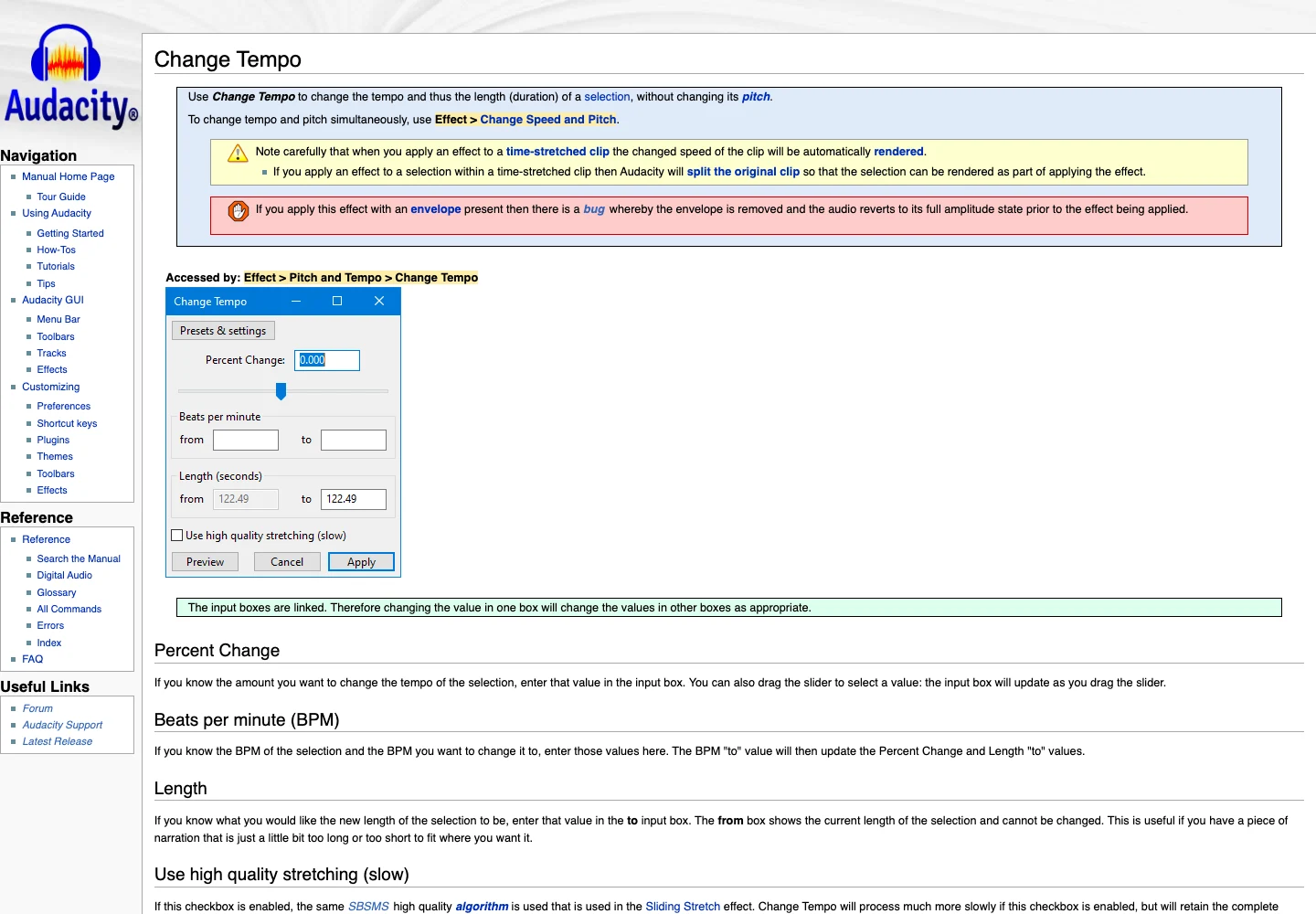
Audacity's tempo tools can help fit a chosen passage without intentionally changing pitch. If you stretch the music, listen again for artifacts and check that the edit still feels natural.
Use WaveQuake for an original soundtrack direction
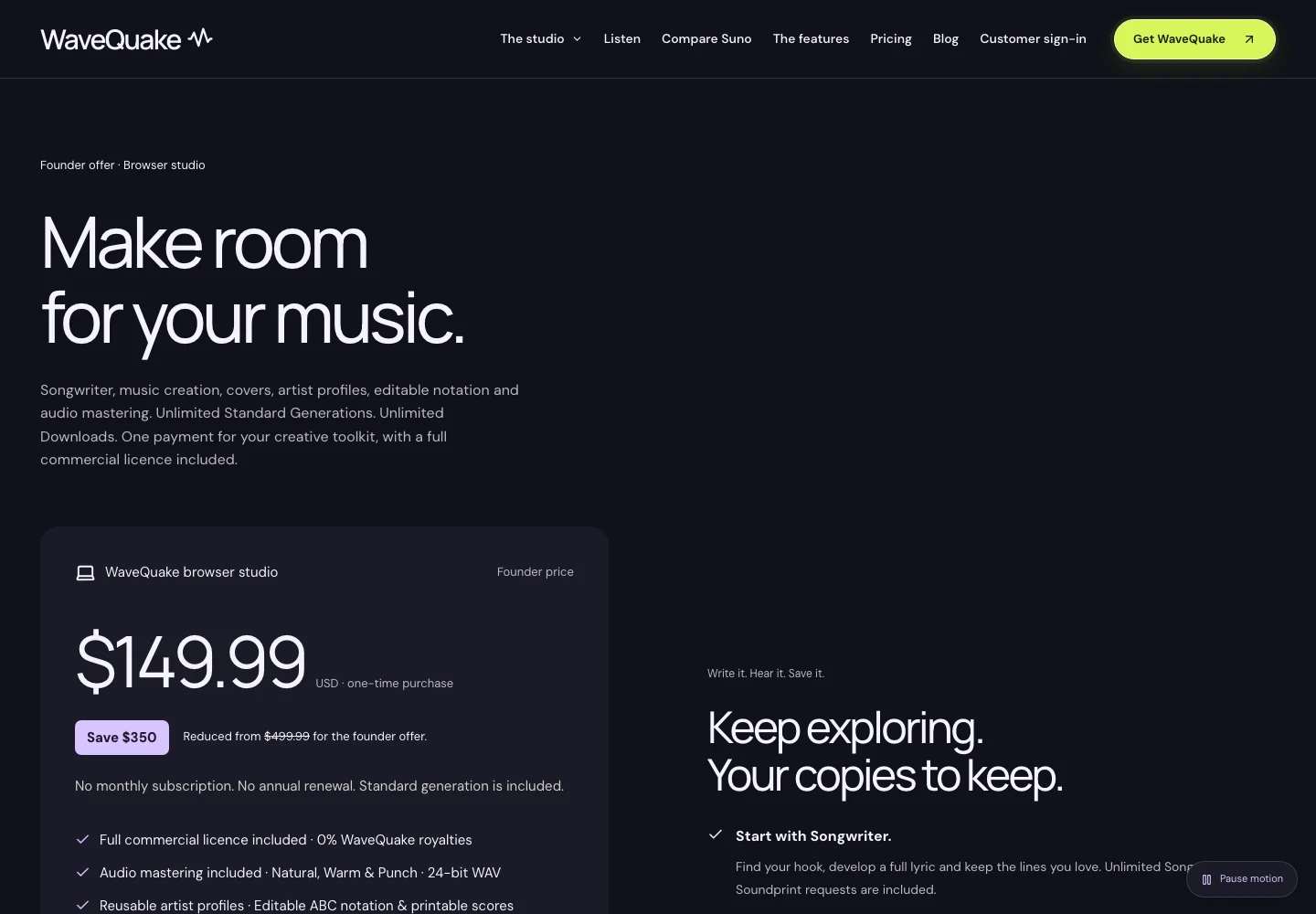
WaveQuake is a useful option when you want the music to feel connected to a particular brand, story or series. Soundprint turns a reference into an editable musical direction, while the studio lets you create and compare song candidates from a brief.
Translate the reference into attributes you can change: warm electric keys, dry drums, restrained bass, a light melodic motif. Use your own creative direction and material you have permission to use. The aim is a soundtrack that fits your project, not an imitation you cannot confidently release.
A full song generated in WaveQuake is source material for your edit. Select a suitable passage, arrange it around the narration and verify whether you need additional instrumental or stem work. This guide does not assume WaveQuake includes a dedicated seamless-loop or voiceover-ducking tool.
The current studio offer returns two versions per successful standard generation and includes mastering and downloads of retained files. Compare both takes against the same cue sheet. The one that leaves the clearest space for speech is the better candidate for this job, even if the other is more impressive as a standalone song.

Make clean edits and keep the handoff usable
Trim at musical boundaries where possible. A cut on an arbitrary timestamp can remove the beginning of a drum hit or leave a chord unresolved. For a repeating bed, test several repeats and listen to the join each time.
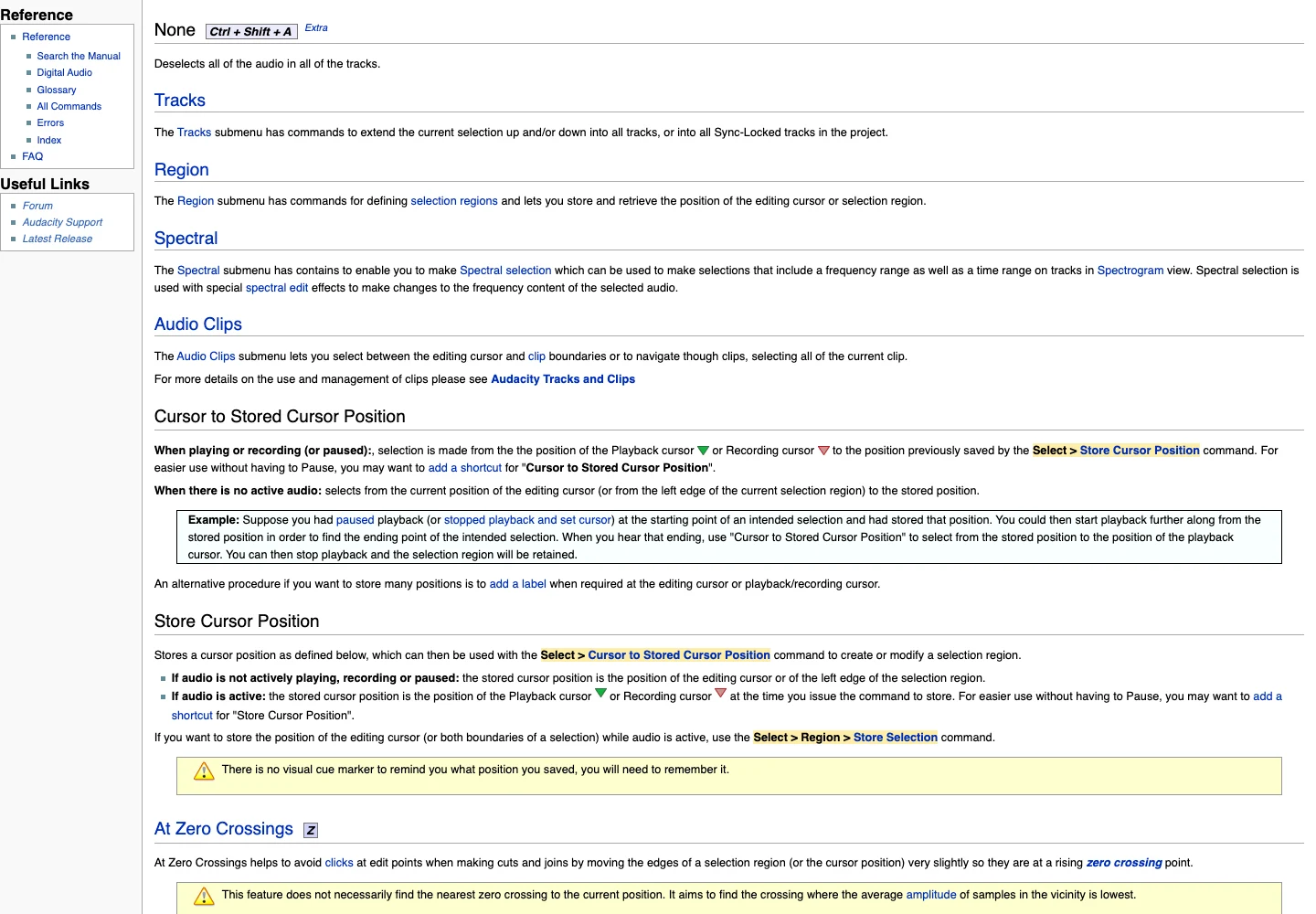
Audacity's zero-crossing guidance explains one way to reduce clicks at cuts. A low-click edit is only the technical half of the job: the harmony, rhythm and ambience also need to make sense across the join.
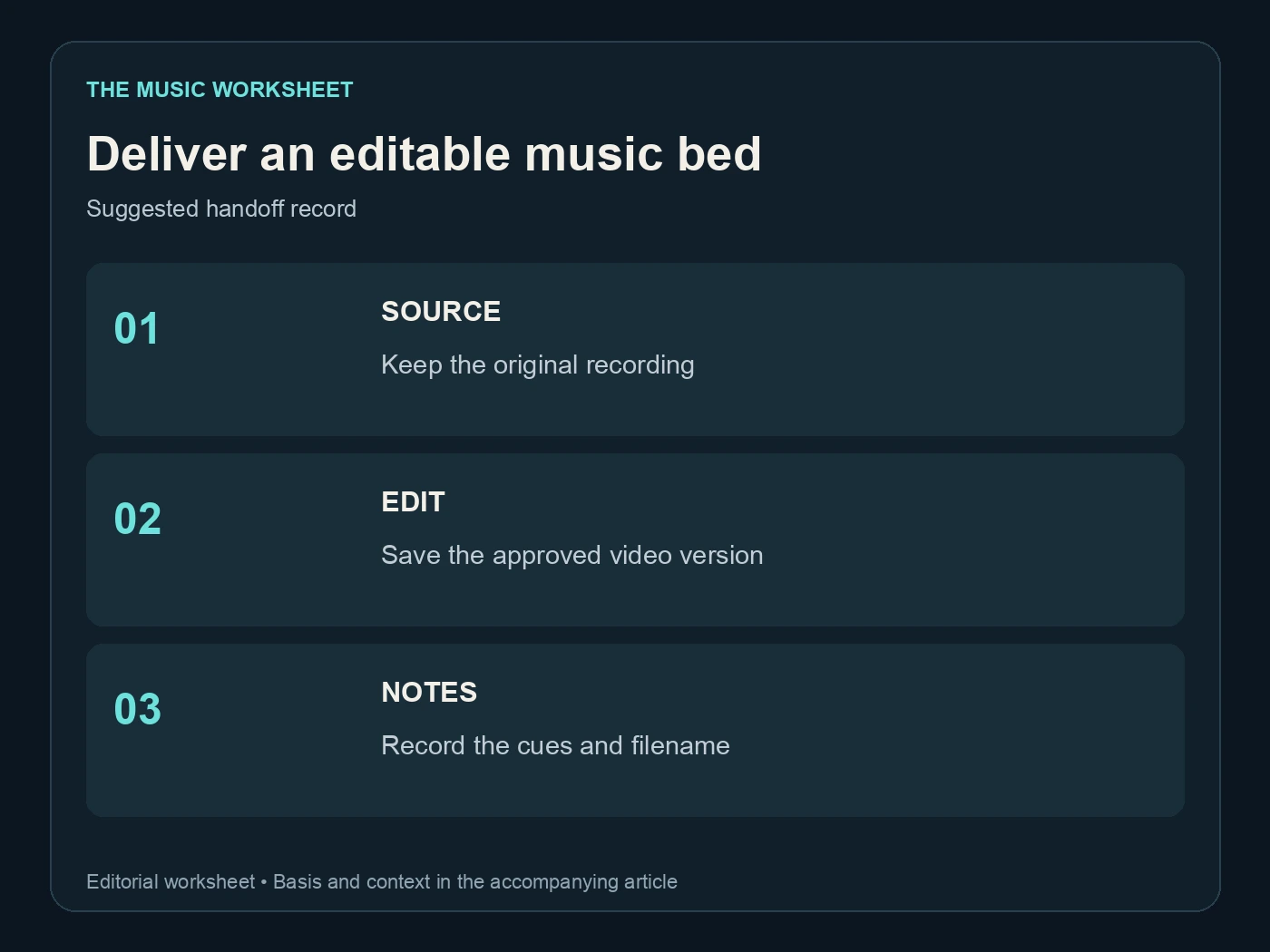
Deliver the finished mix and, when the project requires it, separate music and voice files. Name them clearly. “Video mix,” “music bed” and “voiceover” are useful labels because a later editor can see what each file contains without guessing.
If you run the selected music through Undetectr as part of release preparation, put the resulting file back under the narration and repeat the balance check. Our artifact-removal guide covers that separate preparation stage. Processing the music does not establish rights or replace the final mix review.
Save a reusable brief for the next episode
A recurring series benefits from consistency, but that does not require using the same loud section behind every sentence. Save your arrangement brief, approved instrumentation, typical cue positions and examples of what was too busy.
Keep the delivered file locally with the project. WaveQuake's published retention is 30 days, so its working library should not be your only archive. Also retain the source recording and any project file used for trimming, fading or mixing.
On the next episode, start by checking whether the voiceover has the same pacing and structure. Reuse the parts of the brief that still fit, then adapt the music to the new message. That turns a useful production habit into a repeatable workflow without letting the soundtrack dictate the script.
Frequently asked questions
Choose based on the job: a loop, a full arrangement or a soundtrack you want to develop across a series. Compare the actual outputs under your narration rather than choosing from a feature list alone.
Its documentation includes loops and background sounds among its uses. Check the generated arrangement, the seam and the permitted use of the output before placing it in a finished project.
It can help develop and generate original song candidates for the soundtrack. Select an appropriate passage and complete the voiceover balance and edit in your production workflow.
There is no universal fader value. Start with the speech, add music gradually and test the mix on the playback devices your audience is likely to use.
Not necessarily. A restrained motif can help the opening and ending, while a simpler texture may work better during dense explanation.
Follow the agreed brief, usually including the final mix and any requested separate music or voice files. Keep the source, edit project and permission records so later revisions are manageable.
Ready to release your Suno tracks?
Explore Undetectr’s published track-processing features before preparing your release.