Suno Instrumental: Make Tracks Without Vocals (2026)
A Suno instrumental can be a finished piece, a backing track for a singer or a quiet layer underneath a video. Those uses sound similar in a search box, but they need different arrangements. A prominent guitar solo may carry an instrumental beautifully and still compete with a spoken introduction. The first decision is whether you need new music or the instrumental version of a particular song. This guide covers both, including what to listen for in a Suno V6 result, how to avoid unnecessary separation work and where WaveQuake fits when the project also needs a vocal demo.
- The short version: A new Suno instrumental and a vocal-free copy of an existing song require different workflows.
- Start new music with the instrumental option and a brief that names the job of the melody.
- For an existing recording, compare stem separation with the original arrangement before accepting the backing track.
- Keep the source, edited version and approved export separate so later production changes remain manageable.
- Decide what the instrumental needs to do
- Generate a new Suno instrumental
- Use V6 as a starting point you can evaluate
- Remove vocals from an existing song carefully
- Choose the least disruptive repair
- Use WaveQuake for the vocal version of the idea
- Finish the chosen backing track
- Deliver a backing track someone can use
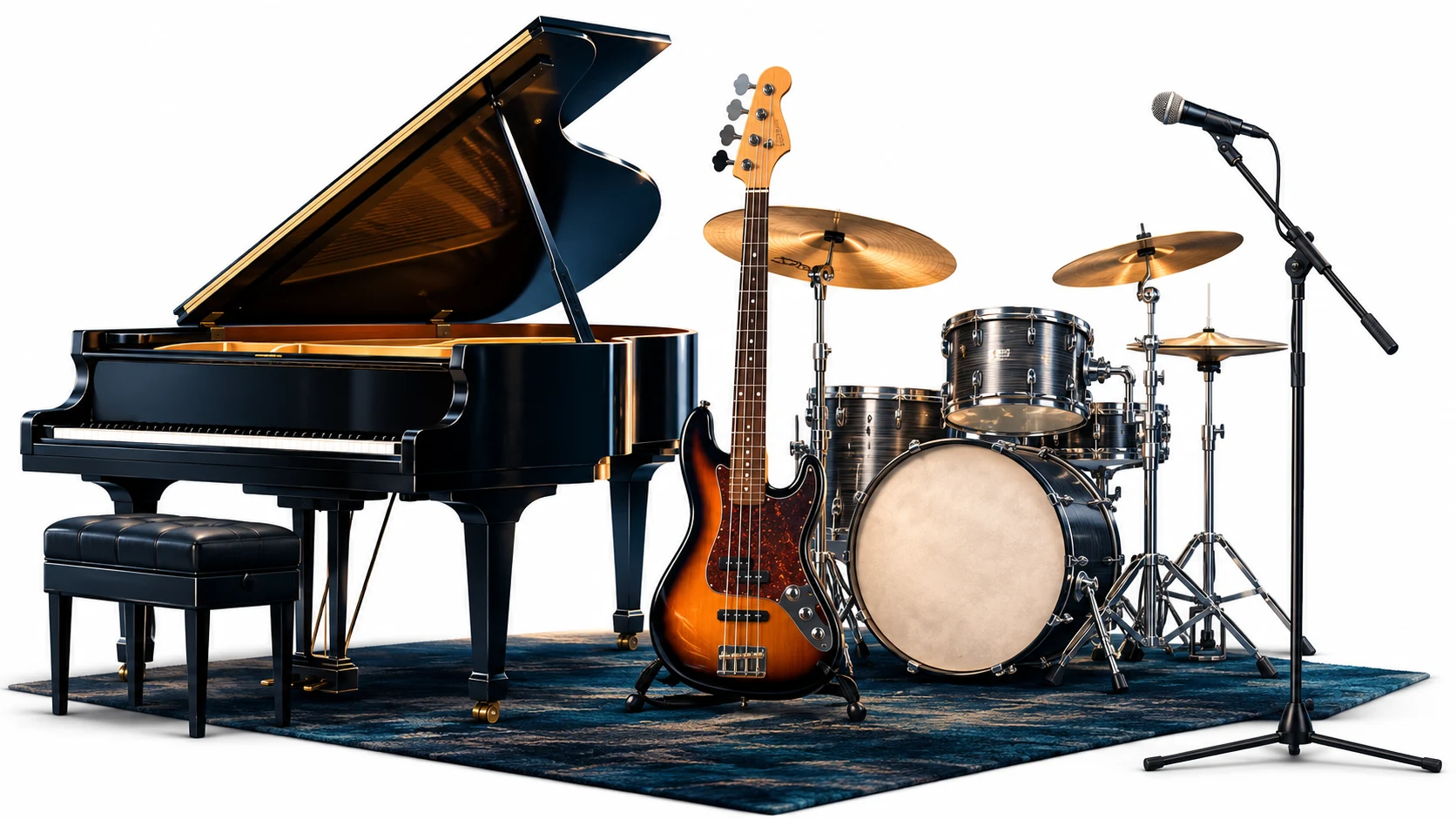
Decide what the instrumental needs to do
Write the intended use before describing the genre. For a singer, leave space where the lead melody will go. For a travel film, plan changes around the picture. For a standalone instrumental, give the listener a recognisable musical idea that can develop without words.
A useful brief might be: “Warm instrumental soul, electric piano carrying the main theme, restrained drums, rounded bass, a quieter middle passage and a resolved ending.” The description identifies roles. It gives you something to judge when the recording arrives.
Do not begin by listing every instrument you enjoy. Several lead instruments can compete for the same space. Choose one principal voice and let the rest support it. Our Suno prompt guide develops that approach, while the YouTube music guide considers the extra demands of picture and narration.
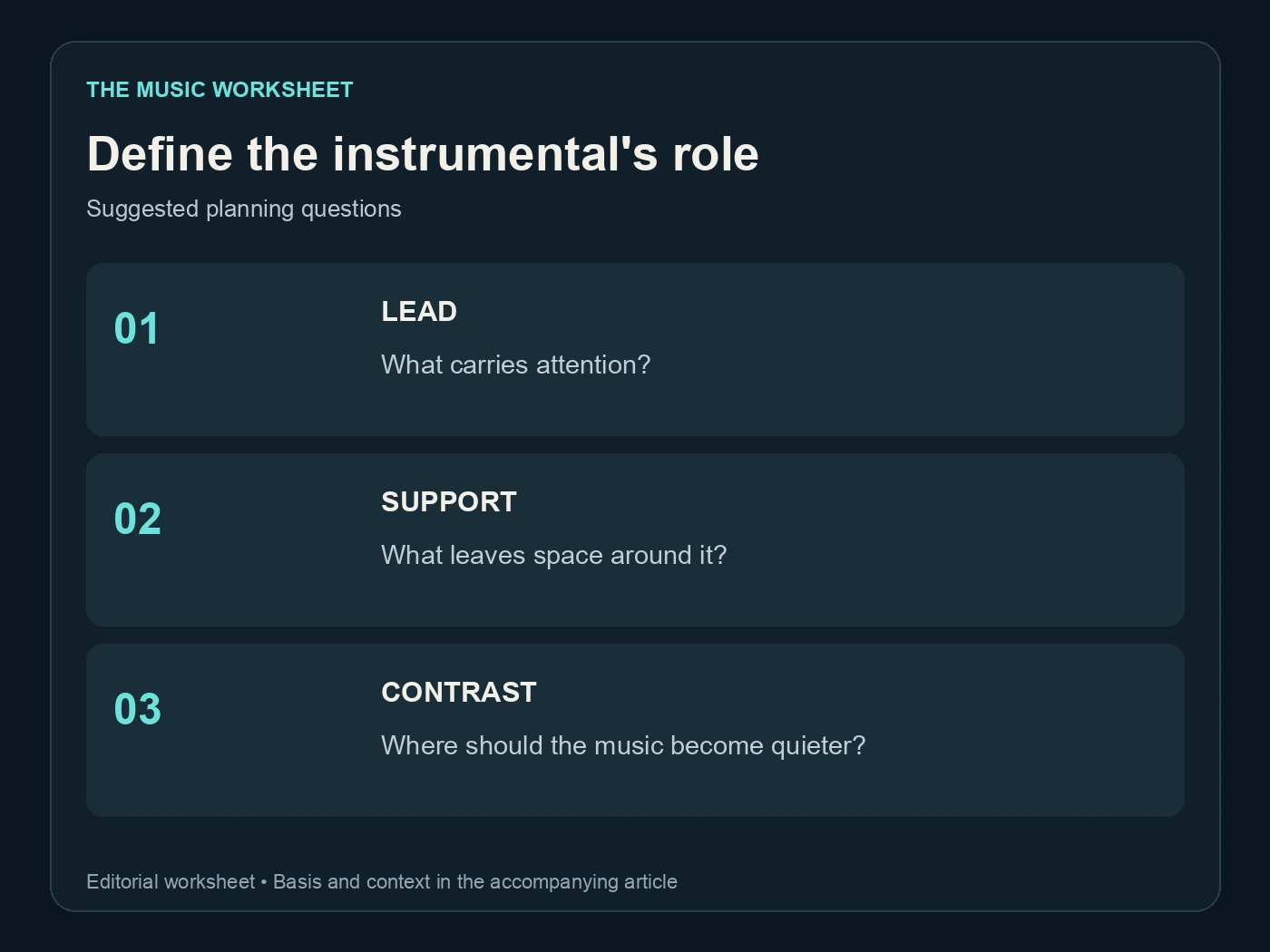
Use three questions as your initial worksheet: what carries attention, what supports it and where should the music become quieter? These are suggested planning categories, not controls that guarantee an exact arrangement.
Generate a new Suno instrumental
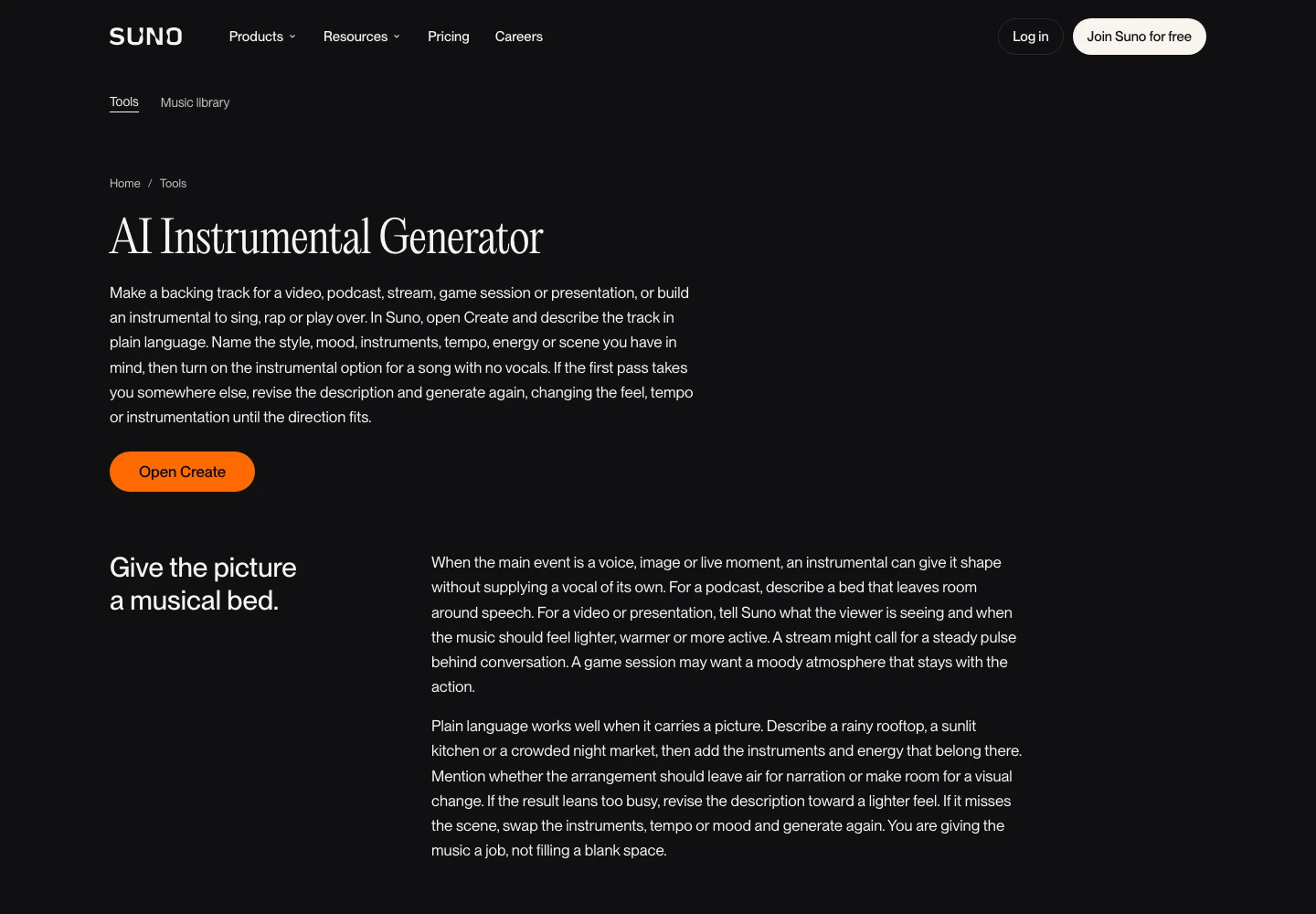
Suno's instrumental generator page documents the instrumental route for creating music without a sung lyric. Select the instrumental option in the available creation interface, then describe the musical direction. Check the selected mode before spending a generation on a long prompt.
Keep vocal instructions out of the positive brief when they serve no purpose. “A choir-like synthesizer” may be a perfectly reasonable sound, but it introduces ambiguity if your absolute requirement is no voice-like material. Start with plain instrument names and describe the texture more precisely after hearing a candidate.
Try a compact brief before expanding it. If the result already has the right balance, adding more adjectives can make comparison harder. Save the exact prompt with the recording so a promising arrangement has a usable history.
For a backing track, listen while quietly singing your planned melody. An empty lyric field does not automatically create space for a new singer. The generated instrumental may fill every gap with its own lead line. Change the musical role before asking for another take.
Use V6 as a starting point you can evaluate
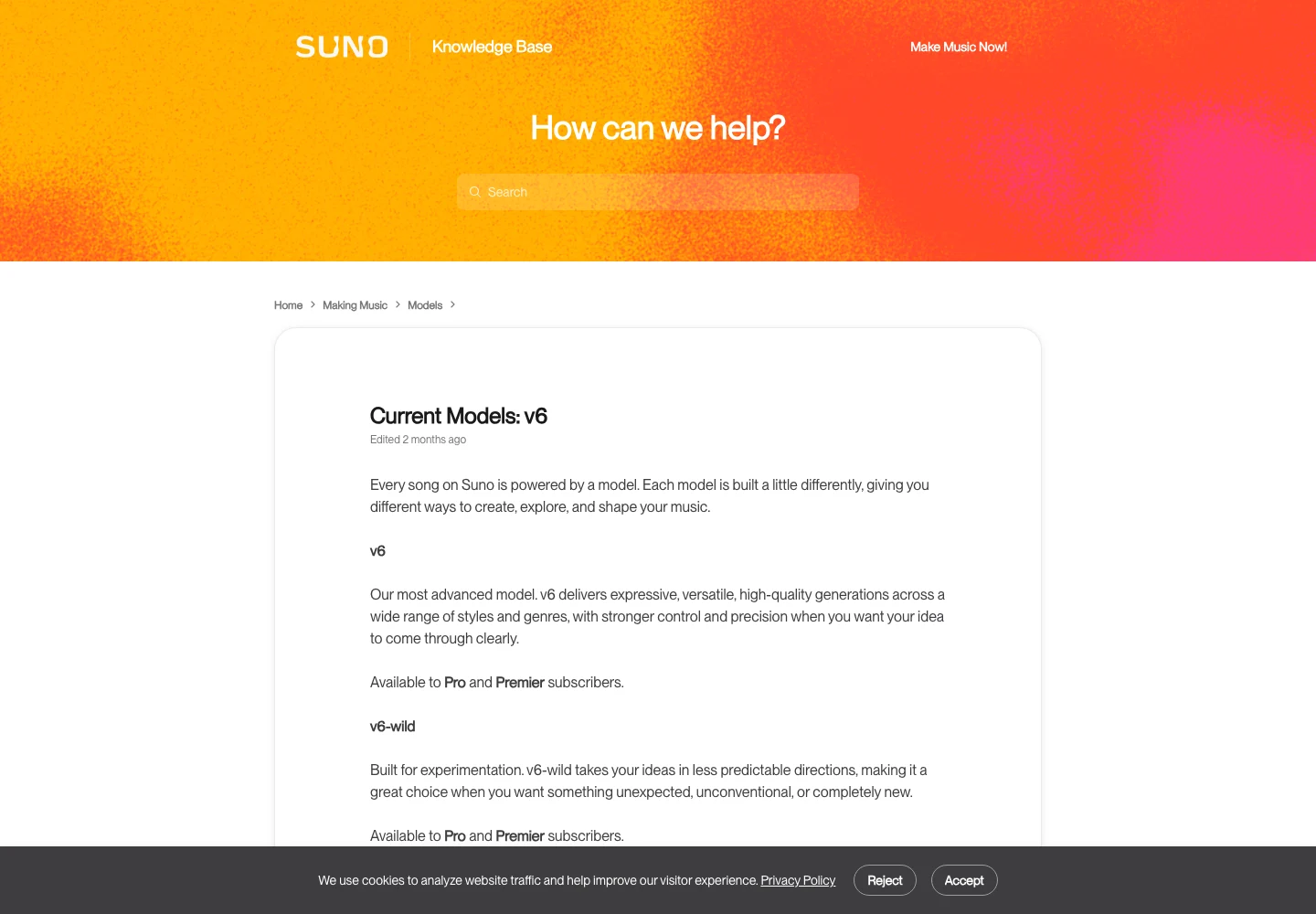
Suno's current V6 documentation describes its current model family. The important production habit is to note which model you used and compare results against the same brief. A different model can change more than the detail you wanted to improve.
Keep a short listening log. A candidate that sounds impressive in isolation might be less useful than a simpler performance once it is paired with a voice. Score the task rather than the size of the arrangement.
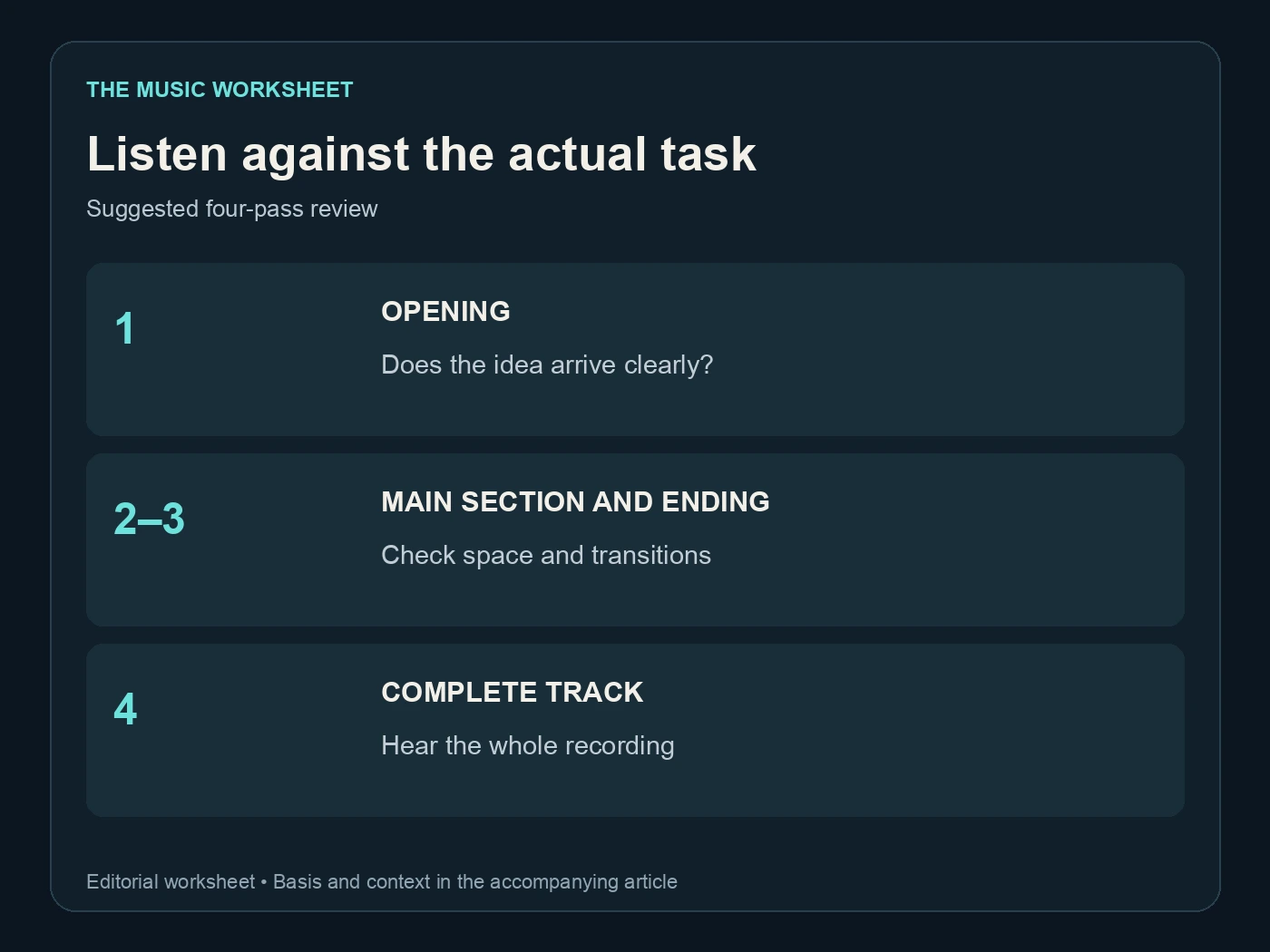
| Suggested review pass | Number of passes | Listen for |
|---|---|---|
| Opening | 1 | Does the musical idea arrive clearly? |
| Main section | 1 | Is there room for the intended lead or speech? |
| Transition and ending | 1 | Do changes feel deliberate? |
| Full recording | 1 | Does the complete piece sustain its purpose? |
These four passes are an editorial review method, not a measured success rate. Note the location of a problem in words as well as time: “the bright melody in the second chorus” remains understandable if an edit shifts the timeline.
Remove vocals from an existing song carefully
If you need the arrangement from an existing recording, use separation rather than expecting a new prompt to reproduce it. Suno's Advanced Stem Separation guide distinguishes Auto Split, Split from Mix and Advanced Split. Split from Mix can isolate a vocal and provide the complementary audio; access and credit requirements depend on the current plan and mode.
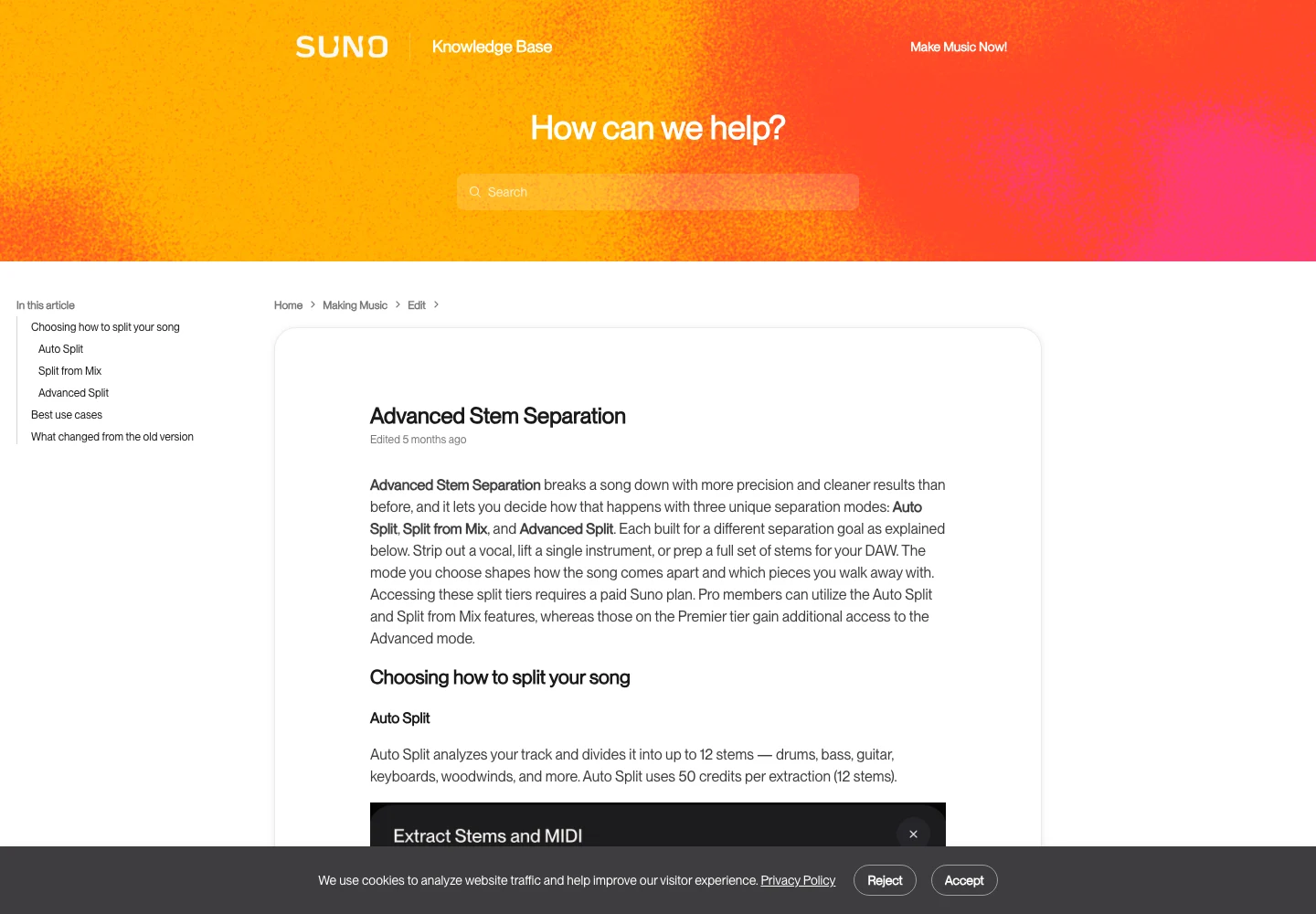
Listen to both returned parts. If a guitar phrase disappeared from the backing track, it may have been grouped with the vocal. If the backing track contains a watery echo of the singer, separation has not produced a perfectly clean instrumental. The filenames alone cannot settle either question.
Compare the busiest chorus and the quietest verse. Residual voice can hide under drums and become obvious when the arrangement thins. For a live performance, rehearse against the entire file at the volume and on the system you expect to use.
Our Suno stems guide explains the broader editing workflow. Keep the original mix available throughout: it is the reference for checking whether separation removed useful musical material along with the voice.
Choose the least disruptive repair
A short unwanted syllable and a vocal throughout the song are different problems. In the first case, a local edit or a better section may solve the issue. In the second, you may need separation, a different arrangement or a new recording.
| Illustrative situation | First comparison | Source files to retain |
|---|---|---|
| New instrumental has a brief voice-like texture | Another version of the same brief | 2 |
| Existing song needs its lead removed | Original mix and separated backing | 2 |
| Only one passage is distracting | Original and local edit | 2 |
| Backing is too busy for a singer | Current arrangement and simpler candidate | 2 |
The file counts describe this suggested comparison pair, not a product limit. Avoid stacking several destructive processes before deciding whether the first one helped. Otherwise it becomes difficult to tell which step caused a dull snare or a missing phrase.
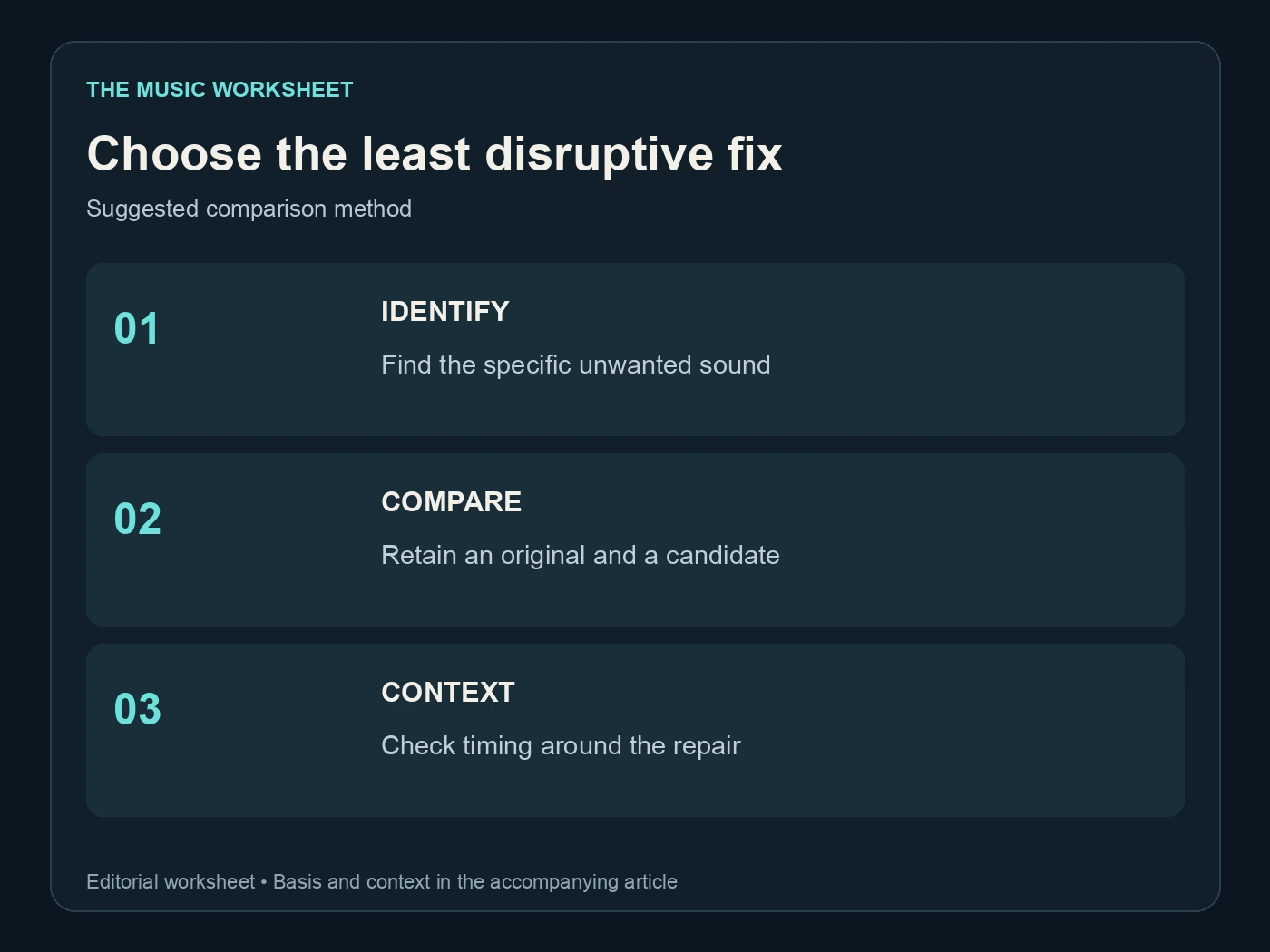
When a local fix is possible, preserve the musical timing on either side of it. A clean-sounding cut that removes half a beat can make the backing harder to perform with than the original flaw. Check the entry into the next section, not just the repaired instant.
Use WaveQuake for the vocal version of the idea
Some projects need an instrumental rehearsal track and a vocal demonstration. WaveQuake is relevant to the vocal-demo stage: its music creation page describes turning lyrics and musical direction into song versions. The same page explicitly states that instrumental-only mode is not included.
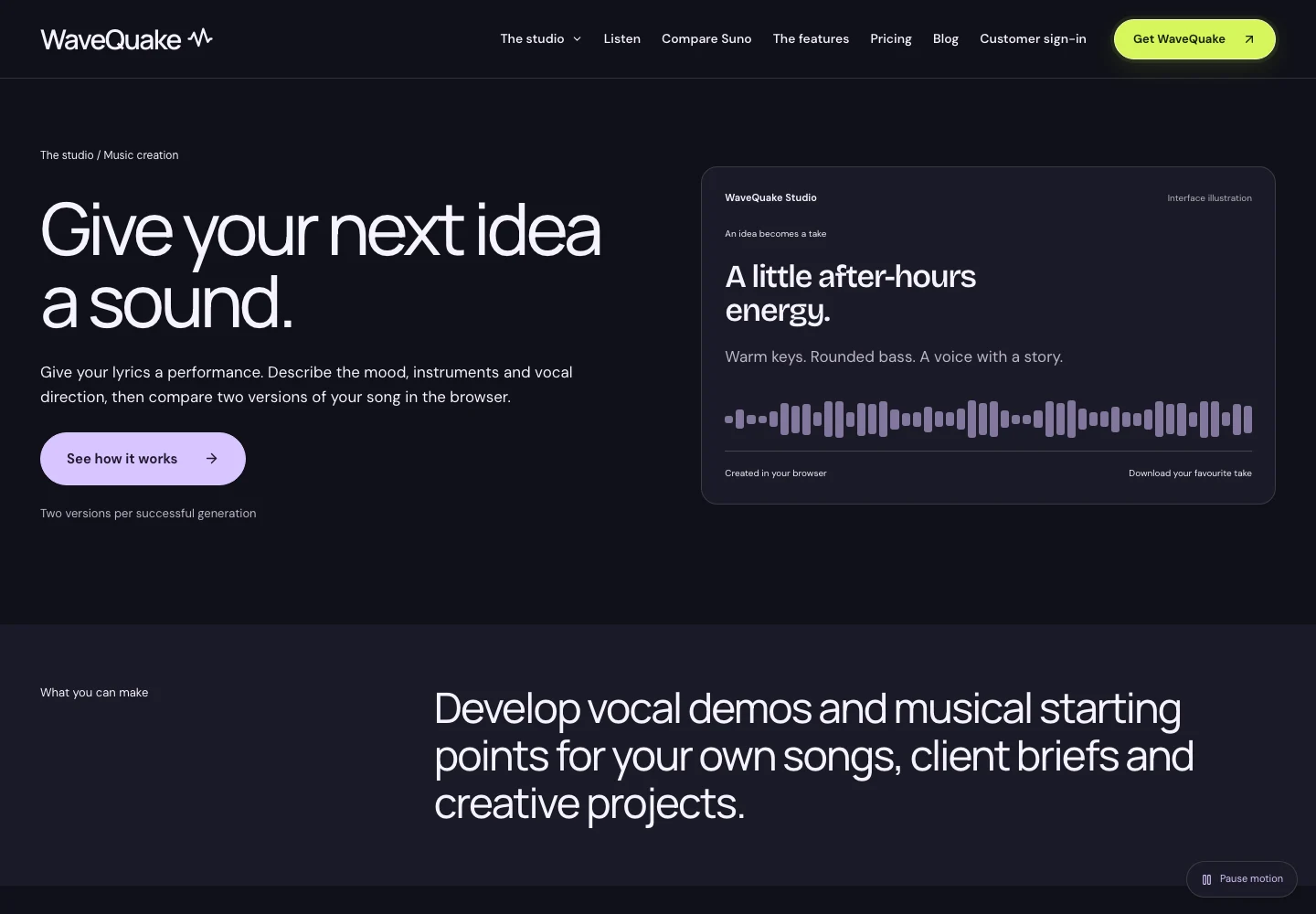
That distinction makes the workflow clearer. Write the song's lyrical and melodic intention in the vocal demo, then choose an appropriate instrumental creation or separation tool for the backing. Do not buy a vocal-song workflow on the assumption that an empty lyric field guarantees an instrumental.
If your idea begins with a musical reference, the WaveQuake Soundprint guide can help you turn observations about pace, texture and arrangement into a brief. Keep the reference descriptive and use material you are entitled to supply.
Compare the backing and the vocal demo as separate deliverables. The backing must support a performance; the demo must communicate the song. They may need different balances even when they express the same underlying idea. Save notes about the intended key and structure with both files.
Finish the chosen backing track
Once you have a usable arrangement, check its beginning, ending and overall level. Trim accidental silence carefully, leave musical decay where it matters and make sure the performer or editor can identify the first entry. If a count-in is useful, agree on it explicitly rather than hiding it in an ambiguous filename.
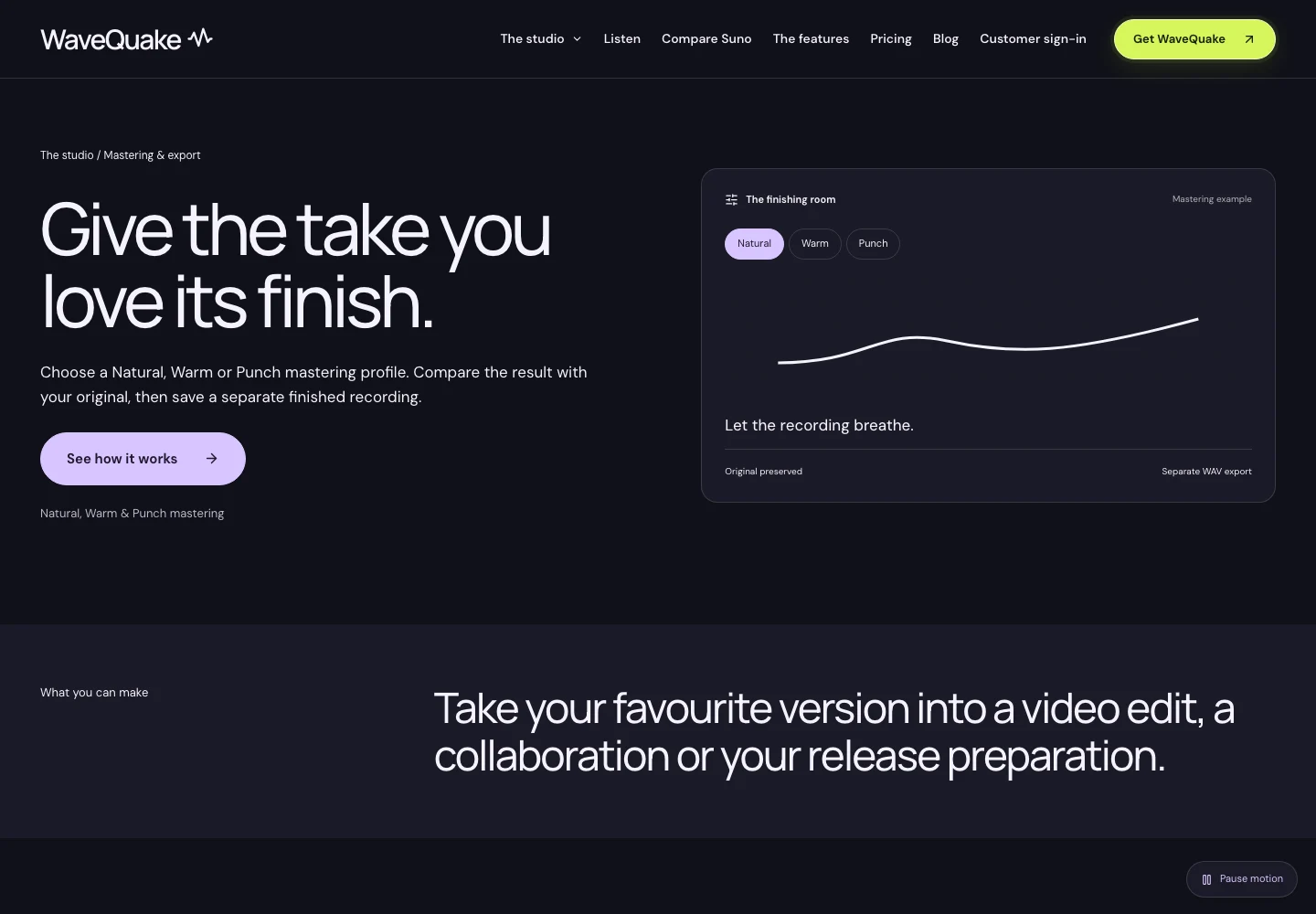
WaveQuake's mastering workspace offers profile comparisons and a separate WAV export while preserving the uploaded source. Mastering is a finishing comparison; it cannot restore every instrument removed during separation.
For a track with remaining AI artifacts, Undetectr is another processing option to evaluate on a copy before delivery. Listen again to the bass, transients and any sustained lead instrument after processing. The goal is a backing that still has the musical character you selected. Our AI music artifact-removal guide explains why the actual exported audio deserves a separate review.
Do not approve a file solely because its waveform looks tidy. A quiet vocal remnant or a softened attack may be audible without looking dramatic on screen. Hear the whole recording under the intended performance conditions.
Deliver a backing track someone can use
A practical handoff contains the selected source, the finished backing and a short note identifying the version. State whether the track includes a count-in, whether the ending has been shortened and whether tempo information was measured or merely requested in the original prompt.
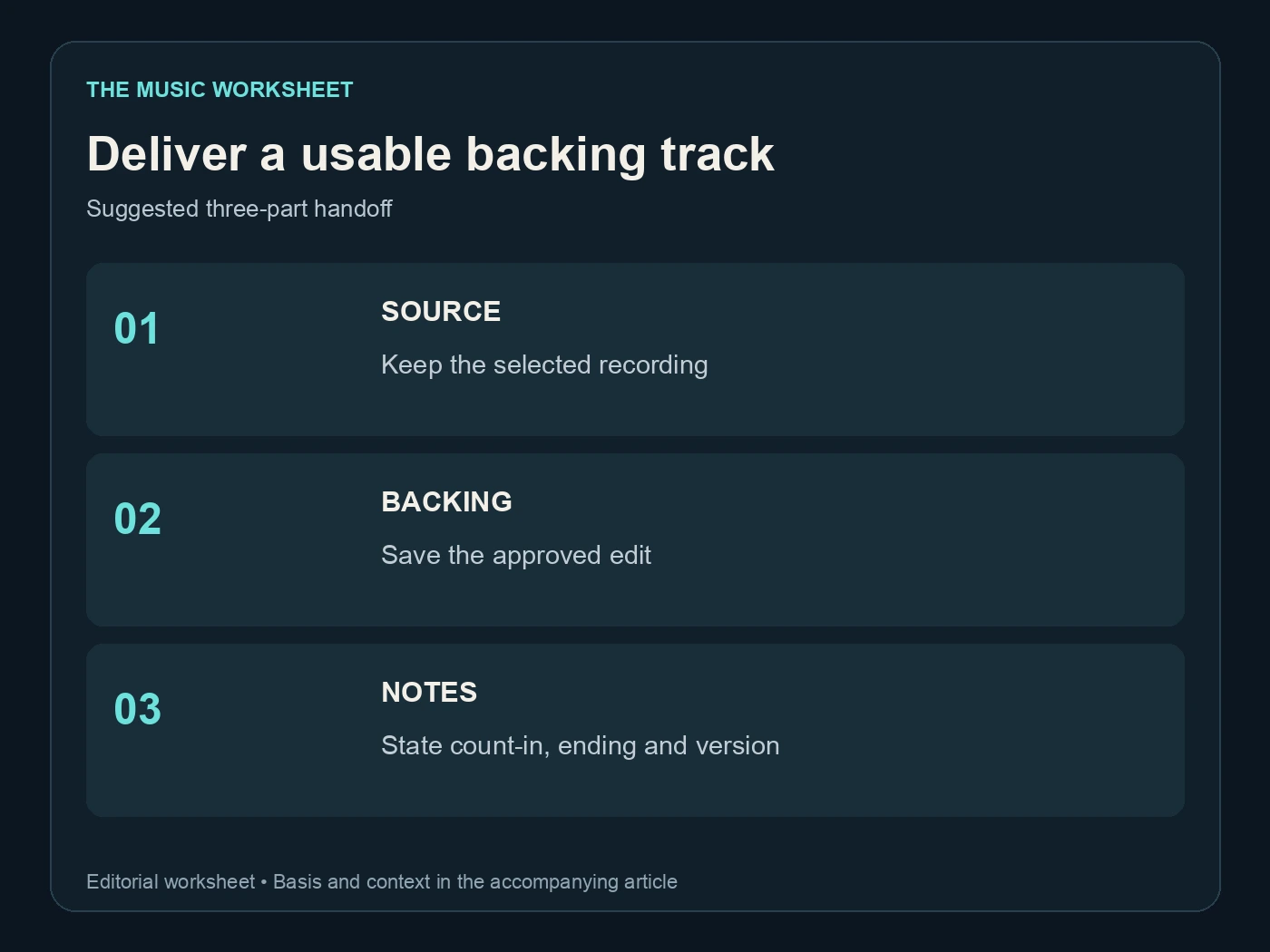
If the file is going to a vocalist, include the lyric or section sheet they are rehearsing against. If it is going to an editor, identify the intended start and finish cues. The same audio can be difficult to use when those assumptions are missing.
Reopen the exported file in a separate player before sharing it. Check that the download is complete, the correct version is present and the final decay has survived. A project preview and an exported file are distinct things.
WaveQuake's help pages provide the current product workflow when the demo or finishing stage uses its studio. Keep that operational reference separate from your own production notes. The most useful archive tells a future collaborator what you chose and why, without requiring them to reconstruct every generation attempt.
Frequently asked questions
Suno provides an instrumental creation option. Select it and write a musical brief that avoids unnecessary vocal references, then listen for unwanted voice-like sounds in the returned recording. The intended mode does not replace checking the actual audio.
No. Generation creates a new performance from a brief, while separation attempts to extract parts from an existing recording. Use separation when preserving the particular arrangement matters, and compare the complementary backing with the original mix.
The model may have interpreted part of the requested texture as a voice-like sound. Identify whether it is local or persistent, simplify the brief and compare another candidate. Existing recordings may instead need separation or a carefully bounded edit.
Stem separation can provide a starting point. Rehearse with the complete backing and check for residual lead vocals, missing instruments and awkward transitions. Also confirm that your intended use fits the rights and permissions attached to the recording.
Its current music creation page says instrumental-only mode is not included. It can fit the vocal-demo stage of the project, while another suitable workflow supplies the instrumental backing. Check the live product description before choosing a plan.
Keep the original source and compare separation before committing to a finished master. Extra processing can change what you hear in the separated result. Approve the arrangement first, then evaluate finishing on a separate copy and reopen the export.
Ready to release your Suno tracks?
Explore Undetectr’s published track-processing features before preparing your release.